Job for nginx.service Failed: How to Fix It (2026)
 MD Rakibul Islam RakibFull-stack developer, DevOps & Linux engineer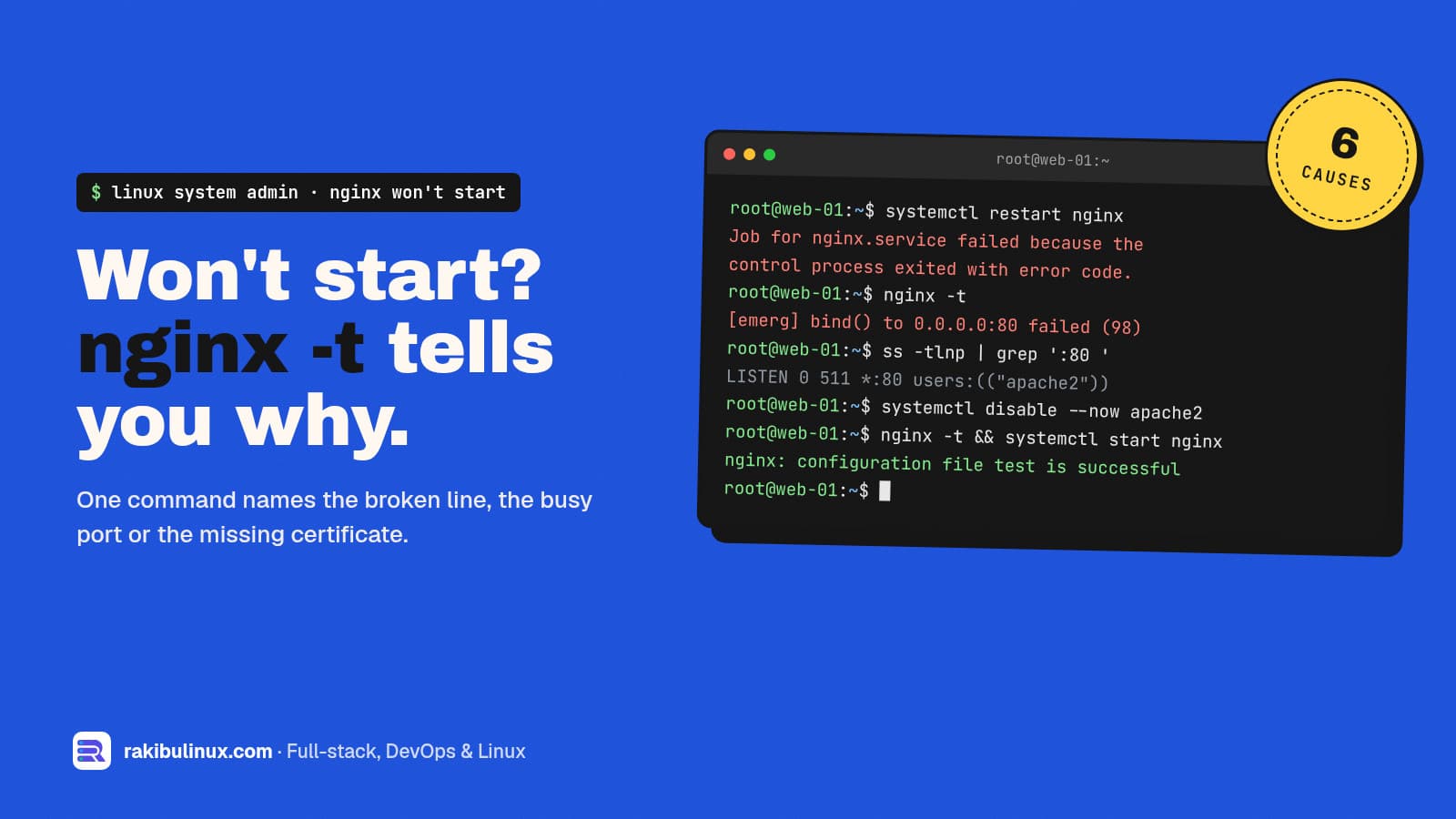
"Job for nginx.service failed" means Nginx exited while starting. Run sudo nginx -t: it names the bad line, port clash or missing SSL file in seconds.
You edit a config, run sudo systemctl restart nginx, and instead of a quiet prompt you get a red message pointing you at systemctl status and journalctl. If Nginx was running before, it's now stopped, and so is every site on the server. I've hit this on my own servers after a typo, after a certificate renewal and after installing a package that quietly started Apache. Every time, the fix took less than five minutes once I read the right line. This guide shows that line and the six causes behind it. The same method works for any service that shows this message: Apache, MySQL, PHP-FPM or your own app.
Key takeaways
- Run
sudo nginx -tfirst. It tests the config without touching the running server and prints the exact file and line number of the problem. - "Address already in use" means another program holds port 80 or 443. Usually Apache, a second Nginx or a Docker container.
- "cannot load certificate" means a path in
ssl_certificatepoints at a file that doesn't exist or can't be read. - Use
reload, notrestart, after edits. A failed reload keeps the old config running; a failed restart takes every site down. - The pattern works for any unit:
journalctl -xeu <name>.serviceshows why it exited.
The full error message
Job for nginx.service failed because the control process exited with error code.
See "systemctl status nginx.service" and "journalctl -xeu nginx.service" for details.
"Control process" is the command systemd runs to start the service, for Nginx that's nginx -t followed by nginx itself. "Exited with error code" means that command returned a non-zero status. systemd doesn't know why, it only knows the start failed. The why is in the logs it points to.
Step 1: Read the real error
sudo nginx -t
sudo systemctl status nginx --no-pager -l
sudo journalctl -xeu nginx.service --no-pager | tail -n 30
nginx -t is the fastest. On a healthy server it prints two lines ending in "syntax is ok" and "test is successful". On a broken one it prints an [emerg] line like these:
nginx: [emerg] unknown directive "proxy_pas" in /etc/nginx/sites-enabled/shop:14
nginx: [emerg] bind() to 0.0.0.0:80 failed (98: Address already in use)
nginx: [emerg] cannot load certificate "/etc/letsencrypt/live/shop.example.com/fullchain.pem"
nginx: [emerg] a duplicate default server for 0.0.0.0:80 in /etc/nginx/sites-enabled/blog:2
Match yours to one of the causes below.
Cause 1: A typo or bad directive in the config
The most common cause by far. A missing semicolon, a misspelled directive, an unclosed brace or a directive that needs a module you don't have. nginx -t gives the file and line:
sudo nano +14 /etc/nginx/sites-enabled/shop
sudo nginx -t && sudo systemctl reload nginx
If you can't find the mistake, comment out the whole file (or remove its symlink from sites-enabled), get Nginx running for your other sites, then fix it calmly. Watch for .bak or .save copies in sites-enabled: Nginx loads every file there, including the editor backup with the old broken config.
Cause 2: Port 80 or 443 is already in use
nginx: [emerg] bind() to 0.0.0.0:80 failed (98: Address already in use)
Find out who owns the port:
sudo ss -tlnp | grep -E ':80 |:443 '
The usual suspects:
- Apache got installed as a dependency (some PHP packages pull it in). Stop and disable it:
sudo systemctl disable --now apache2. - A stray Nginx process that systemd lost track of, for example one started by hand with
sudo nginx. Stop it withsudo nginx -s quit, then start the service normally. - A Docker container publishing port 80, such as Traefik or a test web server.
docker psshows it.
The same error with "Cannot assign requested address" instead means a listen line uses an IP that isn't on this server, common after moving to a new VPS. My EADDRINUSE guide covers port clashes for Node apps too.
Cause 3: Missing or unreadable SSL certificate
nginx: [emerg] cannot load certificate "/etc/letsencrypt/live/shop.example.com/fullchain.pem":
BIO_new_file() failed (SSL: error:80000002:system library::No such file or directory)
The config points at a certificate that isn't there. This happens when you copy a site's config to a new server before running Certbot, when a domain was removed with certbot delete but its config wasn't, or when the cert folder name has a -0001 suffix after a re-issue. Check what actually exists:
sudo certbot certificates
sudo ls -l /etc/letsencrypt/live/
Fix the path, or temporarily remove the listen 443 server block, issue the certificate, and add it back. If renewal itself is failing, see Certbot renewal failed.
Cause 4: Duplicate default_server or conflicting server_name
nginx: [emerg] a duplicate default server for 0.0.0.0:80 in /etc/nginx/sites-enabled/blog:2
Only one server block per port can be default_server. You probably copied the stock default site. Remove default_server from the copy. Duplicate server_name values only produce a warning, but they still mean one site is answering for the other, so clean them up too.
Cause 5: Permissions, paths and the PID file
Less common, but I still see them:
open() "/var/log/nginx/shop.error.log" failed (2: No such file or directory): the log directory in your config doesn't exist. Create it or point the log at/var/log/nginx/.(13: Permission denied)on a log or cert file: wrong ownership, often after copying files with a different user.- Disk full: Nginx can't write its PID or logs.
df -hwill tell you; see No space left on device.
Cause 6: It's not Nginx (same message, other services)
The exact wording appears for any systemd service. Replace the name and use the service's own test command when it has one:
sudo journalctl -xeu apache2.service | tail -30   # Apache: sudo apachectl configtest
sudo journalctl -xeu php8.3-fpm.service | tail -30 # PHP-FPM: sudo php-fpm8.3 -t
sudo journalctl -xeu mysql.service | tail -30
sudo journalctl -xeu myapp.service | tail -30      # your own unit
For your own Node.js service, the cause is usually a wrong ExecStart path, a missing environment variable or the app crashing on boot. My systemd service guide for Node.js shows a unit file that logs clearly.
How to stop it happening again
- Always test before applying:
sudo nginx -t && sudo systemctl reload nginx. The&&means a broken config never gets loaded. - Reload instead of restart. If a reload fails, Nginx keeps serving with the old config, so your sites stay up.
- Keep configs in git or at least back up
/etc/nginxbefore big edits. - Add an uptime check so a stopped web server pages you, not your customers. Uptime Kuma takes ten minutes to set up.
Frequently asked questions
What does "control process exited with error code" mean?
systemd ran the command that starts the service and that command failed. systemd only reports that it failed; the reason is in journalctl -xeu nginx.service or, for Nginx, in the output of sudo nginx -t.
Why does nginx -t say the syntax is ok but Nginx still won't start?
The test checks syntax and loads files, but it doesn't bind ports. If the test passes and the start fails, the cause is almost always port 80 or 443 already in use. Run sudo ss -tlnp | grep ':80 ' to see who holds it.
Is it safe to run nginx -t on a live server?
Yes. It only reads and checks the configuration. It doesn't stop, reload or change the running Nginx, so you can run it as often as you like.
Should I use systemctl restart or reload for Nginx?
Use reload after config changes. Reload applies the new config without dropping connections and keeps the old one if the new one is broken. Restart fully stops Nginx first, so a bad config means downtime.
How do I fix "Job for apache2.service failed"?
Same method. Run sudo apachectl configtest to find config errors and sudo ss -tlnp | grep ':80 ' for port clashes, usually with Nginx. Only one of them can listen on port 80 at a time.
Server down and the log makes no sense?
I fix broken Nginx, Apache and app services on Linux servers, usually within the hour, and leave you with a setup that tests itself before every reload. Book my emergency server fix, see all Linux system admin services, or send me the output of nginx -t.

Written by
MD Rakibul Islam Rakib
Full-stack developer, DevOps engineer and Linux system administrator with 5+ years of production experience. I deploy, harden and fix servers and web apps for clients worldwide, and everything in this article runs on real servers I manage, including this site.
- Job for nginx.service failed
- control process exited with error code
- nginx -t
- Address already in use
- systemctl
- journalctl
- Ubuntu