Emails Going to Spam? Fix SPF, DKIM and DMARC (2026)
 MD Rakibul Islam RakibFull-stack developer, DevOps & Linux engineer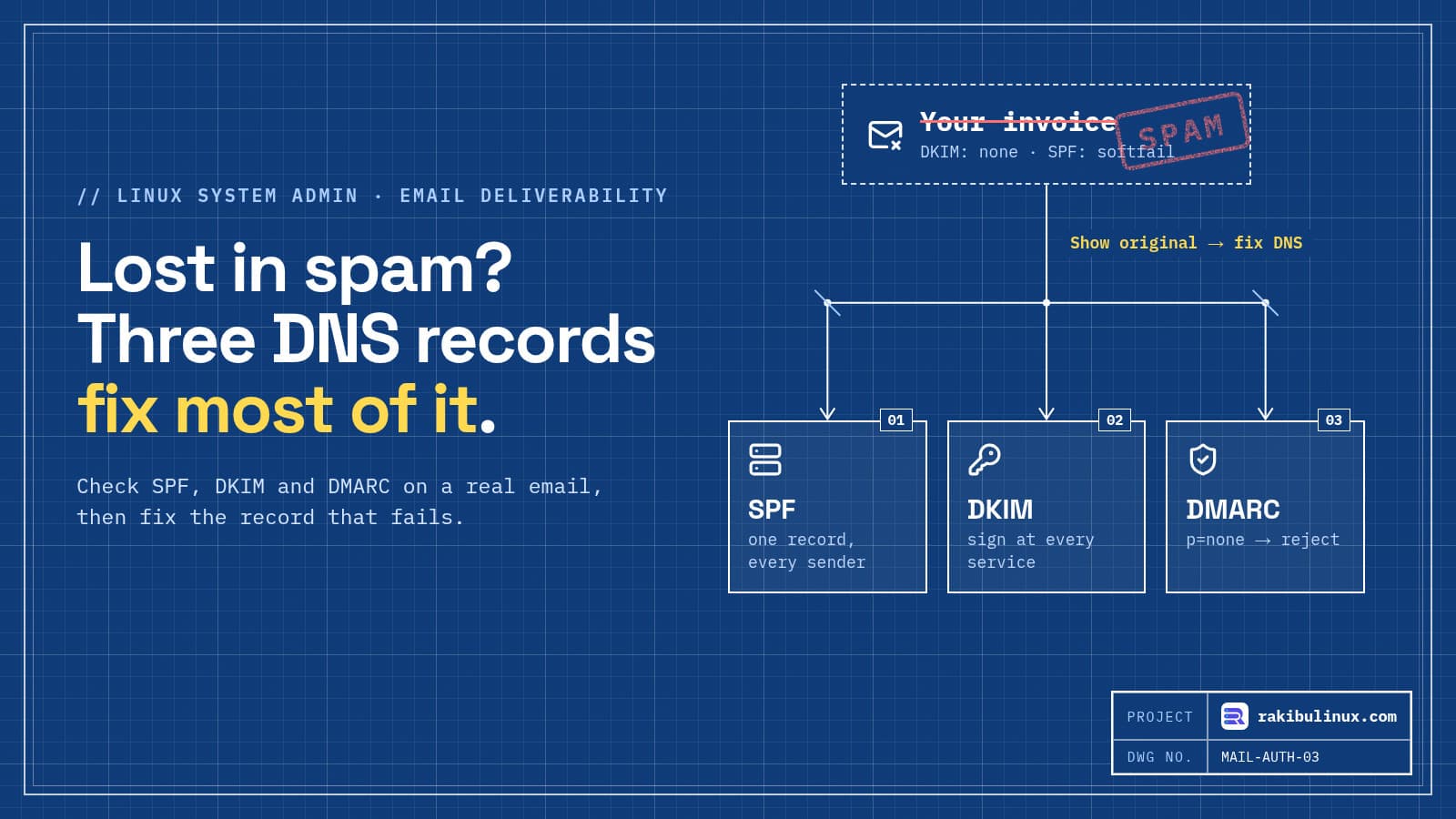
Business emails land in spam mostly because SPF, DKIM or DMARC is missing or broken. Gmail's "Show original" shows which one fails; fix it in your DNS.
When your quotes, invoices or contact-form replies go to spam, you lose customers without ever knowing it. Gmail, Yahoo and Outlook now expect every sender to prove the email really comes from their domain, and they're strict about it. I set up DNS and mail for the sites I build and host, and when a client tells me "customers say they never got our email", the cause is nearly always one of the authentication records below, or a contact form that pretends to send from the visitor's address. Here's how to check yours in five minutes and fix it.
Key takeaways
- Check a real message first. In Gmail, open it, click the three dots, then "Show original". It shows PASS or FAIL for SPF, DKIM and DMARC.
- SPF lists which servers may send for your domain. One record only, and every service you send through must be in it.
- DKIM signs each email. Turn it on in every service that sends for you: Google Workspace, Microsoft 365, your newsletter tool, your app's email provider.
- DMARC ties them together and tells inboxes what to do with failures. Start with
p=noneand reports, then tighten. - Contact forms must send from your own domain and put the visitor's address in
Reply-To, never inFrom.
Why inboxes got strict
Since February 2024, Gmail and Yahoo require every sender to have SPF or DKIM, and bulk senders (about 5,000 or more messages a day to Gmail) to have SPF, DKIM and DMARC, one-click unsubscribe for marketing mail, and a spam complaint rate under 0.3%. Microsoft started enforcing similar rules for Outlook.com, Hotmail and Live in May 2025. You may not be a bulk sender, but the same checks decide where your emails land. Unauthenticated mail is the first thing filters push to spam.
Step 1: Read the verdict on a real email
Send an email from your business address to a Gmail account. Open it, then three dots → Show original. At the top you'll see:
SPF:   PASS with IP 209.85.220.41
DKIM:  'PASS' with domain example.com
DMARC: 'PASS'
Any FAIL, NEUTRAL or a missing line tells you where to start. Do this for every way your business sends email: your mailbox, your website's contact form, your shop's order emails, your newsletter. They're often different systems, and each needs its own setup.
From a terminal you can read the records directly:
dig +short TXT example.com | grep spf
dig +short TXT _dmarc.example.com
dig +short TXT google._domainkey.example.com     # selector depends on the provider
Step 2: Fix SPF
SPF is a TXT record on your domain listing who may send for it. A typical one for Google Workspace plus a transactional email service:
example.com. TXT "v=spf1 include:_spf.google.com include:amazonses.com ~all"
Mistakes I find all the time:
- Two SPF records. Adding a second
v=spf1record for a new service breaks both. Merge them into one record. - A sending service not listed. Your CRM or invoicing tool sends as your domain but isn't in the record. Check each tool's docs for its
include:value. - More than 10 DNS lookups. Each
includecan trigger several lookups, and past 10 SPF fails with a "permerror". Remove services you no longer use. - Ending with
+all, which lets anyone send as you. Use~all(soft fail) or-all.
Step 3: Turn on DKIM everywhere
DKIM adds a digital signature to every email. The sending service gives you a public key to publish in DNS, usually as a TXT or CNAME record under selector._domainkey.example.com, and then you switch signing on in its admin panel. In Google Workspace it's under Apps → Gmail → Authenticate email; Microsoft 365 has it in the Defender portal. Google Workspace doesn't sign with your domain until you publish the record and click "Start authentication". That last click is the step people miss.
Do the same for each service that sends as your domain. DKIM is what survives forwarding, so it matters more than SPF in practice.
Step 4: Add DMARC
DMARC tells receivers what to do when SPF and DKIM don't line up with the domain in the From address, and sends you reports. Start in monitor mode:
_dmarc.example.com. TXT "v=DMARC1; p=none; rua=mailto:dmarc@example.com"
After two to four weeks of reports showing all your legitimate senders pass, move to p=quarantine, then p=reject. That also stops scammers from sending fake invoices in your name. The raw reports are XML; a free DMARC report viewer makes them readable.
Step 5: Fix your website's contact form
This one is behind most "website emails go to spam" complaints I see. The form sends a message to you from the visitor's address, for example From: jane@gmail.com, through your web server. Gmail checks Gmail's DMARC policy, sees a server that isn't Gmail, and rejects or junks it. The correct setup:
From:     Website <forms@example.com>     # your domain, authenticated
To:       sales@example.com
Reply-To: jane@gmail.com                  # the visitor, so "Reply" still works
And send through a proper email API or SMTP service (Amazon SES, Postmark, Resend, Brevo, or your Google Workspace account) with SPF and DKIM set up for example.com, not through PHP's mail() on the web server.
Step 6: If you send from your own VPS
Running your own mail server is possible, but it's the hardest path. Check these before blaming DNS:
- Port 25 is often blocked for outgoing mail by cloud providers by default. You may need to request unblocking.
- Reverse DNS (PTR) for the server's IP must point to a hostname that points back to the same IP. Set it in your VPS provider's panel.
- IP reputation. A new or previously abused IP starts with a bad reputation. Check it against blocklists, and use TLS for every connection.
For most small businesses, a mailbox provider for people and a transactional email service for the website is cheaper than the hours a self-hosted mail server costs. My Cloudflare VPS setup checklist covers the DNS side of a new server, including not proxying mail records.
Content and list habits still matter
- Only email people who asked, and make unsubscribing one click. Complaints hurt more than anything else.
- Separate marketing from transactional mail, for example newsletters from
news.example.com, so a campaign can't drag down your invoices. - Avoid link shorteners and image-only emails, and keep the visible link text matching the real URL.
- Watch Google Postmaster Tools once you send regularly. It shows your spam rate and domain reputation at Gmail.
Frequently asked questions
Why are my emails going to spam?
The most common reasons are missing or broken SPF, DKIM or DMARC records, a contact form sending as the visitor's address, a poor sending IP, or recipients marking your mail as spam. Gmail's "Show original" tells you which authentication check fails.
Do I need SPF, DKIM and DMARC?
Yes, all three. Gmail and Yahoo require at least SPF or DKIM from every sender and all three from bulk senders, and Microsoft enforces similar rules. Without them your email is much more likely to be filtered or rejected.
Can I have two SPF records?
No. A domain with two v=spf1 records fails SPF entirely. Combine all senders into one record with several include: entries, and stay under 10 DNS lookups.
How long do DNS changes for SPF, DKIM and DMARC take?
Usually minutes to a few hours, depending on the record's TTL. Test with dig or an online checker, then send a fresh email and check "Show original" again. Old emails won't change.
Why do my website contact form emails go to spam?
Usually the form sends from the visitor's email address through your web server, which fails their domain's DMARC check. Send from your own domain through an authenticated email service and put the visitor's address in Reply-To.
Want your emails in the inbox?
I set up domains, DNS, SPF, DKIM, DMARC and website email sending for small businesses, and fix contact forms that lose leads. See my business website service, all Linux system admin services, or send me your domain and I'll check your records.

Written by
MD Rakibul Islam Rakib
Full-stack developer, DevOps engineer and Linux system administrator with 5+ years of production experience. I deploy, harden and fix servers and web apps for clients worldwide, and everything in this article runs on real servers I manage, including this site.
- emails going to spam
- SPF DKIM DMARC
- email deliverability
- contact form emails spam
- Gmail sender requirements
- DNS records
- Google Workspace