Certbot Renewal Failed? Fix an Expired Let's Encrypt SSL
 MD Rakibul Islam RakibFull-stack developer, DevOps & Linux engineer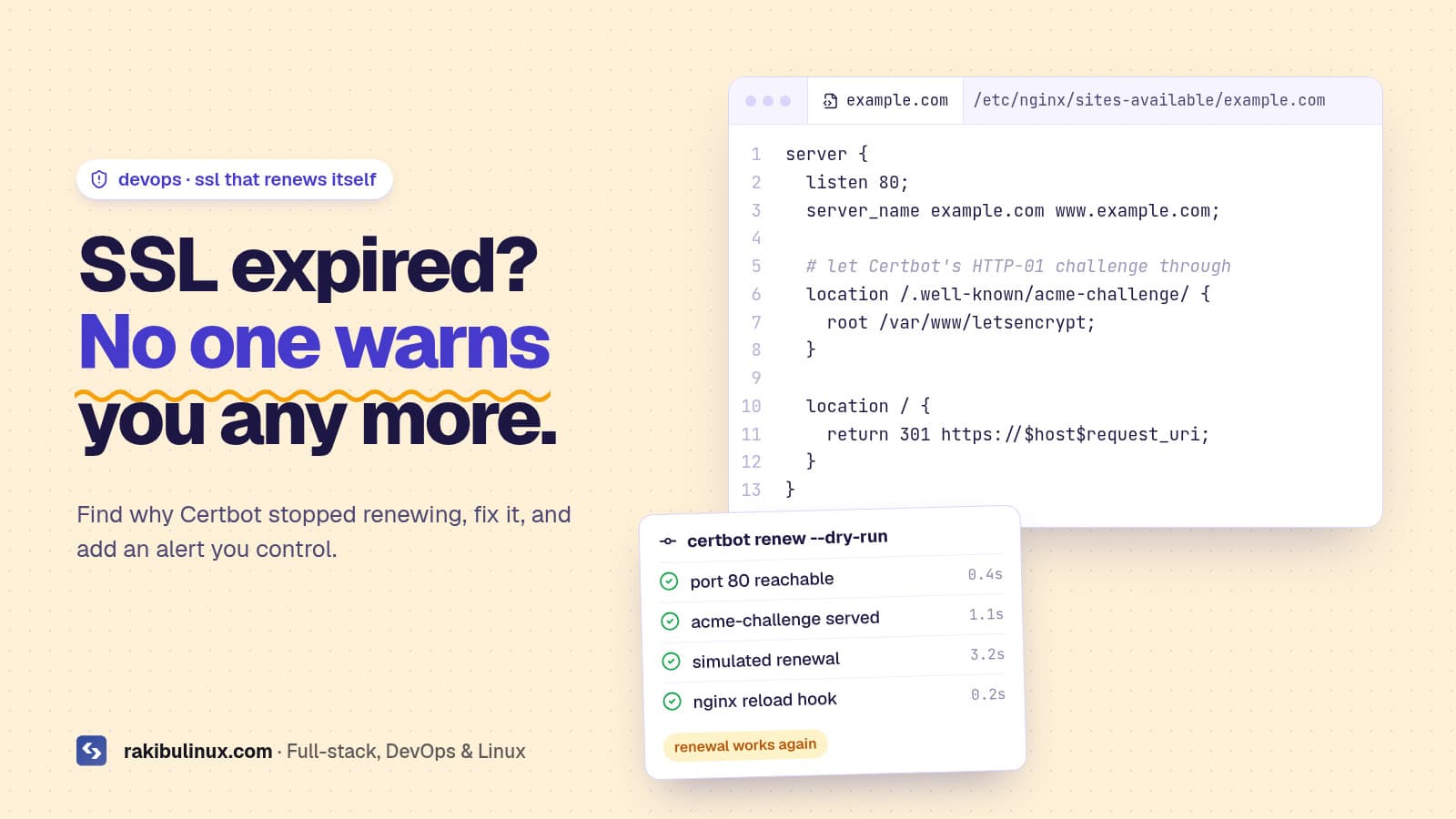
If Certbot renewal failed, run sudo certbot renew --dry-run to see the error. Usual causes: port 80 blocked, a redirect hiding the challenge, or wrong DNS.
An expired certificate takes a site down as completely as a crashed server: browsers show a full-page "Your connection is not private" warning and most visitors leave. It's also become more likely. Let's Encrypt stopped sending expiry reminder emails on June 4, 2025, so when automatic renewal quietly breaks, nobody is warned any more. And certificates are getting shorter: Let's Encrypt's default lifetime drops from 90 to 64 days in February 2027 and to 45 days in February 2028. Renewal has to work every time. Here is how to find why it failed, fix it, and get warned next time.
Key takeaways
- Start with
sudo certbot renew --dry-run. It simulates renewal and prints the real error without using up rate limits. - Most failures are the HTTP-01 challenge: port 80 closed,
/.well-known/acme-challenge/redirected or blocked, or DNS pointing somewhere else. - Check the timer is running:
snap.certbot.renew.timerfor snap installs,certbot.timerfor apt installs. Don't have both. - Reload Nginx after renewal with a deploy hook, or it keeps serving the old certificate.
- Monitor expiry yourself. Let's Encrypt no longer emails you.
Step 1: Get the site back right now
If the certificate has already expired, try a forced renewal first and read the output:
sudo certbot certificates                 # list certs, domains and expiry dates
sudo certbot renew --cert-name example.com --force-renewal
sudo systemctl reload nginx
If that works, the site is back and you can find out why automatic renewal broke. If it fails, the error message tells you which of the causes below you're dealing with. Don't retry in a loop: Let's Encrypt has rate limits on failed validations, and --dry-run uses the staging environment, which doesn't count against production limits.
Step 2: Run a dry run and read the error
sudo certbot renew --dry-run
sudo tail -n 100 /var/log/letsencrypt/letsencrypt.log
The renewal config for each certificate is in /etc/letsencrypt/renewal/example.com.conf. The authenticator line (nginx, webroot or standalone) tells you how Certbot proves you own the domain, which matters for the fixes below.
Cause 1: Port 80 is closed
Errors mention "Timeout during connect" or "Connection refused". HTTP-01 validation always starts on port 80, even if your site is HTTPS only. Check your firewall and your cloud provider's firewall:
sudo ufw status | grep -E '80|Nginx'
sudo ufw allow 'Nginx Full'          # opens 80 and 443
curl -I http://example.com/.well-known/acme-challenge/test   # from another machine
Closing port 80 "for security" is a very common reason renewals stop. Keep it open and redirect everything except the challenge path to HTTPS.
Cause 2: A redirect or rule hides the challenge
Errors like "Invalid response" or a 404 for /.well-known/acme-challenge/ mean Let's Encrypt reached your server but didn't get the token. Typical culprits are a catch-all redirect to another domain, an app route that swallows every URL, basic auth on the whole site, or a "deny all dotfiles" rule like location ~ /\.. Serve the challenge explicitly in the port 80 server block:
server {
    listen 80;
    server_name example.com www.example.com;

    location /.well-known/acme-challenge/ {
        root /var/www/letsencrypt;
    }

    location / {
        return 301 https://$host$request_uri;
    }
}
If you use this webroot, make sure the renewal config matches: authenticator = webroot and webroot_path = /var/www/letsencrypt. Or switch back to the Nginx plugin with sudo certbot --nginx -d example.com -d www.example.com.
Cause 3: Standalone authenticator while Nginx runs
"Could not bind TCP port 80 because it is already in use" means the certificate was first issued with --standalone (Certbot runs its own temporary web server) and Nginx now holds port 80. Reissue it with the Nginx or webroot method so renewals don't need port 80 free:
sudo certbot certonly --nginx -d example.com -d www.example.com
Cause 4: DNS points somewhere else
Let's Encrypt validates every name on the certificate. If www or an old subdomain now points at a different server, a CDN or nowhere, renewal of the whole certificate fails. Check each name:
for d in example.com www.example.com; do echo "$d: $(dig +short $d A) $(dig +short $d AAAA)"; done
Watch out for a stale AAAA (IPv6) record: Let's Encrypt tries IPv6 first when an AAAA record exists, so an old AAAA record pointing at a server that no longer exists can break validation even when the A record is correct. Remove names you don't use from the certificate with sudo certbot --nginx --cert-name example.com -d example.com -d www.example.com, listing only the live ones. If the site is behind Cloudflare's proxy, HTTP-01 usually still works as long as the challenge path isn't blocked, or use a DNS-01 plugin.
Cause 5: The renewal timer isn't running
systemctl list-timers | grep -i certbot
Snap installs (the method Certbot recommends) use snap.certbot.renew.timer; apt installs use certbot.timer. If neither is listed, renewal never runs. If you switched install methods, you may have two Certbots or none. Pick one, remove the other (sudo apt remove certbot if you use the snap), and check that which certbot points where you expect.
Cause 6: Renewed, but the site still shows the old certificate
Nginx loads certificates at startup and on reload. If renewal succeeded but browsers still see the expired one, Nginx wasn't reloaded. The Nginx plugin does this for you; with webroot, add a deploy hook so it happens after every successful renewal:
sudo sh -c 'printf "#!/bin/sh\nsystemctl reload nginx\n" > /etc/letsencrypt/renewal-hooks/deploy/reload-nginx.sh'
sudo chmod +x /etc/letsencrypt/renewal-hooks/deploy/reload-nginx.sh
Also confirm Nginx points at /etc/letsencrypt/live/example.com/fullchain.pem and privkey.pem, not at a copied file that never updates.
Step 3: Monitor expiry yourself
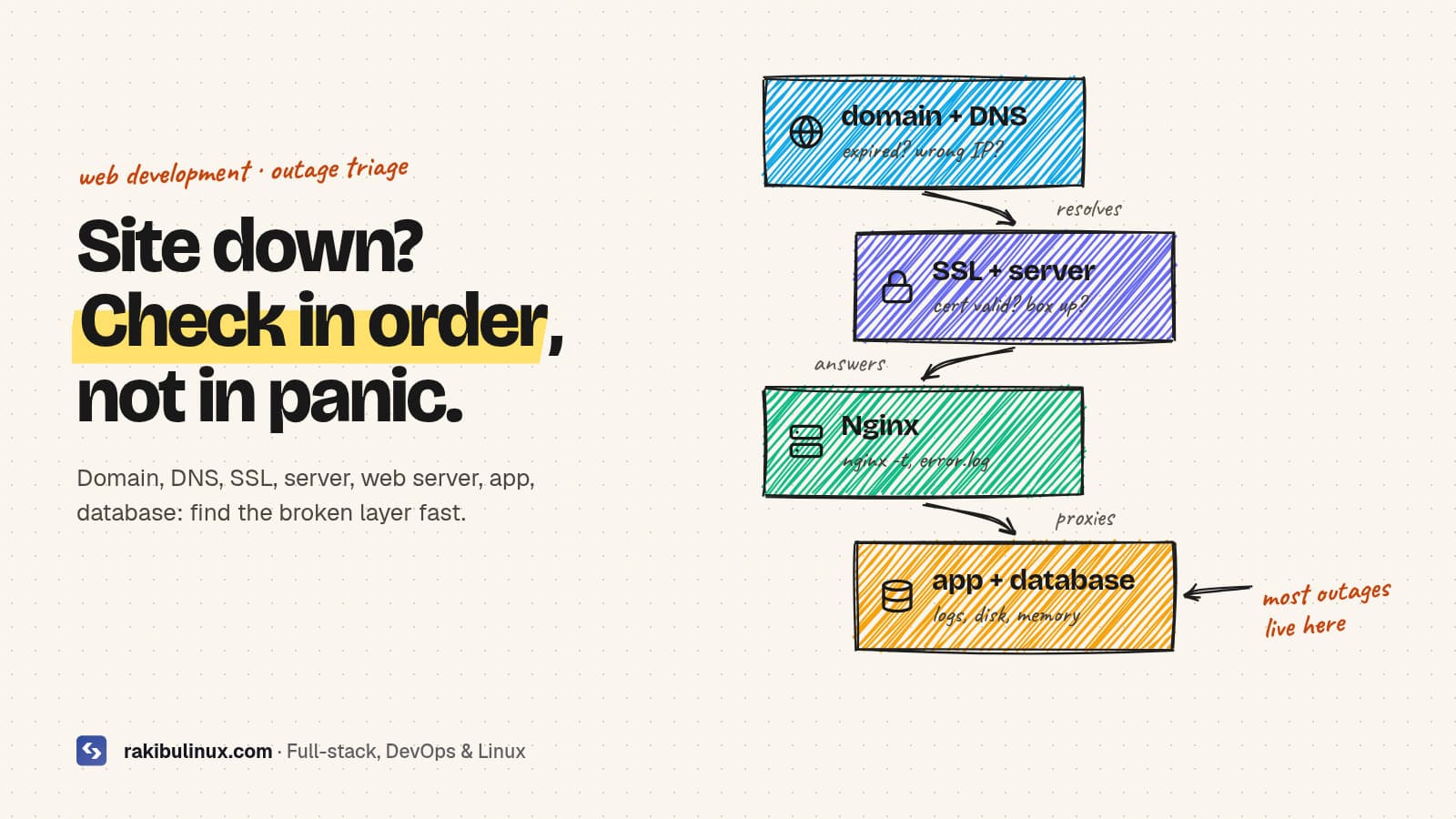
Since the reminder emails are gone, add your own check. The SSL expiry script in my Bash scripts for DevOps post warns 14 days ahead; run it daily from cron or a systemd timer, or use any uptime service with certificate monitoring. With 45-day certificates coming, renewal should happen at about two thirds of the lifetime, which Certbot handles automatically as long as the timer runs. Expired certificates are one of the first things to check when a website is down, and my Next.js on a VPS guide shows a full Nginx + Certbot setup.
Frequently asked questions
Why did my Let's Encrypt certificate not renew automatically?
Usually the renewal timer isn't running, port 80 is blocked, a redirect or app route hides the /.well-known/acme-challenge/ path, or a DNS record on the certificate points elsewhere. sudo certbot renew --dry-run shows which.
Does Let's Encrypt still send expiration emails?
No. Let's Encrypt ended its expiration notification emails on June 4, 2025. Use your own monitoring or a third-party service to get warned before a certificate expires.
How long are Let's Encrypt certificates valid?
90 days by default today. Let's Encrypt plans to shorten the default to 64 days in February 2027 and 45 days in February 2028, so renewal must be fully automated.
Do I need port 80 open if my site is HTTPS only?
Yes, for HTTP-01 validation, which is what Certbot uses by default. Keep port 80 open, serve the challenge path, and redirect everything else to HTTPS. DNS-01 validation is the alternative if port 80 can't be opened.
How do I renew an SSL certificate manually with Certbot?
Run sudo certbot renew for all certificates, or sudo certbot renew --cert-name example.com --force-renewal for one, then reload Nginx. Fix the underlying cause too, or it will fail again at the next renewal.
SSL expired and site showing warnings?
I fix expired and failing SSL certificates quickly, then make renewal reliable with correct Nginx config, hooks and monitoring. See my DevOps services or contact me with your domain.

Written by
MD Rakibul Islam Rakib
Full-stack developer, DevOps engineer and Linux system administrator with 5+ years of production experience. I deploy, harden and fix servers and web apps for clients worldwide, and everything in this article runs on real servers I manage, including this site.
- certbot renewal failed
- Let's Encrypt SSL expired
- certbot renew dry-run
- acme-challenge
- Nginx SSL
- SSL certificate expired
- HTTPS