Linux "No Space Left on Device": Find and Free Disk Space
 MD Rakibul Islam RakibFull-stack developer, DevOps & Linux engineer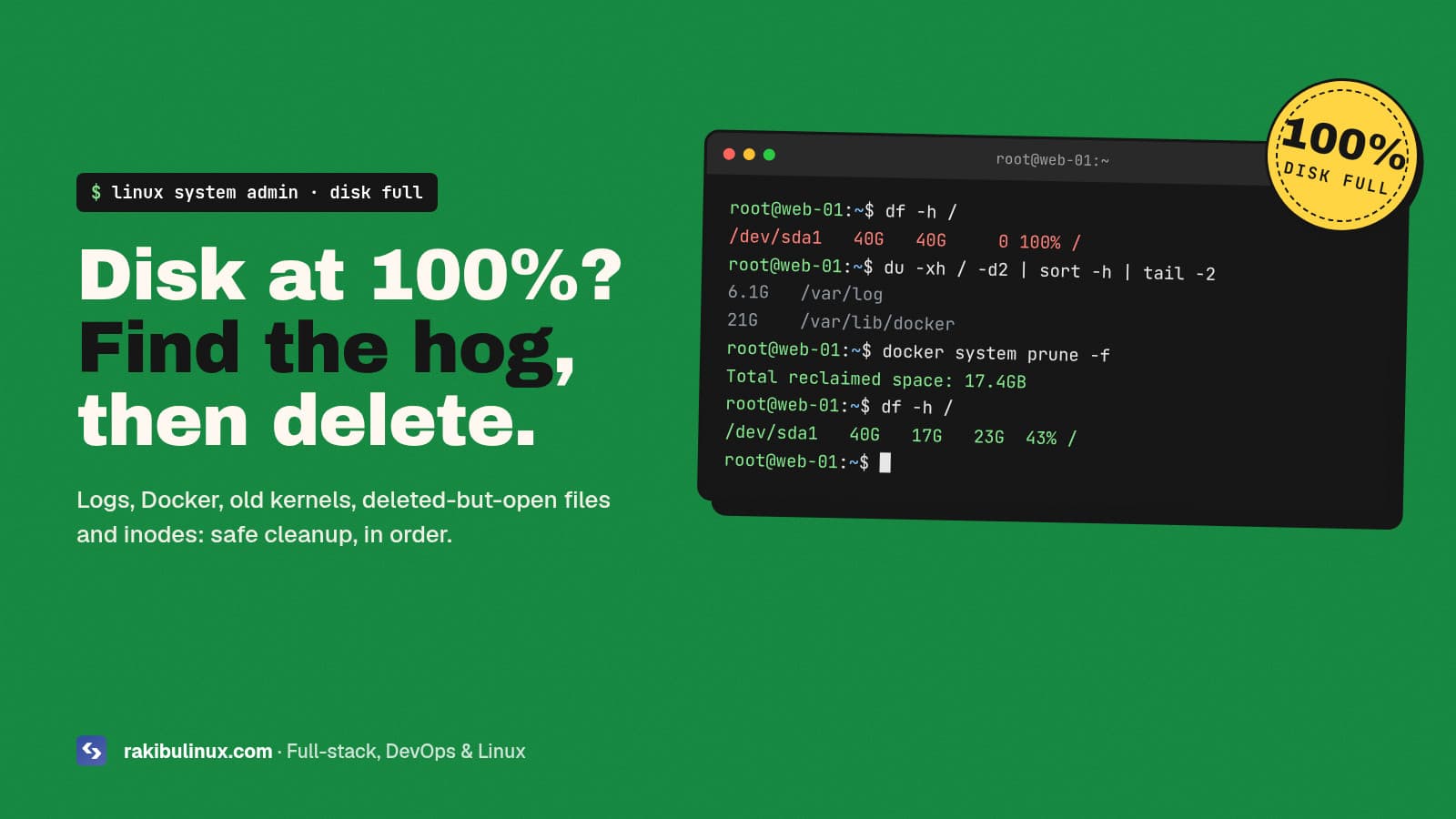
"No space left on device" means a filesystem is out of blocks or inodes. Run df -h and df -i, find big folders with du, then clear logs, Docker and caches.
A full disk is one of the most common reasons a server looks "broken". The symptoms rarely say "disk full": the database refuses writes, uploads fail, the app crashes, deploys break halfway, SSH logins hang, or Nginx won't reload. Then df shows 100%. The good news is that it's usually fixable in a few minutes without losing anything important, as long as you delete the right things. This is the order I work in on Ubuntu servers, from the safest cleanup to the riskiest.
Key takeaways
- Check both blocks and inodes:
df -hfor space,df -ifor file count. Either at 100% gives the same error. - Find the hog before deleting:
du -xh / --max-depth=2 | sort -h | tailshows where the space went. - The usual suspects: logs and the systemd journal, Docker images and container logs, old releases and backups, package caches.
- If
duanddfdisagree, a process is holding a deleted file open.lsof +L1finds it. - Never delete files inside database data directories to make room. Clear something else first, then fix the database properly.
Step 1: Confirm which filesystem is full
df -h -x tmpfs -x devtmpfs -x squashfs
df -i -x tmpfs -x devtmpfs -x squashfs
Look at the Use% and IUse% columns. Note the mount point: / full is the common case, but /boot, /var or a separate data volume can fill on their own. If IUse% is 100% while space is free, you have millions of tiny files (jump to step 6).
Step 2: Find what's using the space
sudo du -xh / --max-depth=2 2>/dev/null | sort -h | tail -20
sudo du -xh /var --max-depth=3 2>/dev/null | sort -h | tail -20
-x stays on one filesystem, so it doesn't wander into mounted volumes. Drill into whatever is biggest. If you prefer an interactive view, sudo apt install ncdu then sudo ncdu -x / lets you browse and delete with arrow keys. On a 100% full disk, apt itself may fail, so free a little space with the steps below first.
Step 3: Clear logs and the systemd journal
The journal can grow to gigabytes. Shrink it safely:
journalctl --disk-usage
sudo journalctl --vacuum-size=500M
Make the limit permanent with SystemMaxUse=500M in /etc/systemd/journald.conf, then sudo systemctl restart systemd-journald.
For big files in /var/log, delete old rotated logs (*.gz, *.1). For a huge log that is still being written, empty it instead of deleting it, or the app keeps writing to the deleted file and the space never comes back:
sudo find /var/log -type f \( -name '*.gz' -o -name '*.[0-9]' \) -delete
sudo truncate -s 0 /var/log/nginx/access.log
PM2 logs live in ~/.pm2/logs and grow forever by default. pm2 flush empties them, and the pm2-logrotate module keeps them in check.
Step 4: Clean up Docker
On servers running containers, /var/lib/docker is the most common culprit: old images from every deploy, stopped containers, build cache and unbounded container logs.
docker system df
docker system prune -f            # stopped containers, unused networks, dangling images, build cache
docker image prune -a -f          # also images not used by any container
sudo du -sh /var/lib/docker/containers/*/*-json.log | sort -h | tail -5
Don't add --volumes unless you're sure: volumes hold database data. To stop container logs growing forever, set a limit in /etc/docker/daemon.json and restart Docker (it applies to newly created containers):
{
  "log-driver": "json-file",
  "log-opts": { "max-size": "50m", "max-file": "3" }
}
Step 5: Packages, kernels, snaps and old releases
sudo apt-get clean                 # downloaded .deb cache
sudo apt-get autoremove --purge    # old kernels and unused packages
snap list --all | awk '/disabled/{print $1, $3}'
Snap keeps old revisions of each package; remove disabled ones with sudo snap remove NAME --revision=REV, and keep fewer with sudo snap set system refresh.retain=2. A full /boot is almost always old kernels, which autoremove clears.
Then check your own files: old deploy releases, database dumps, uploaded files in temp folders, node_modules copies and forgotten .tar.gz backups in home directories. My deploy script keeps only the newest five releases and 30 database dumps for exactly this reason; see Bash scripts for DevOps. Backups belong off the server anyway, as in my Linux backup guide.
Step 6: Out of inodes
If df -i shows 100%, find the folder with the most files:
sudo du -x --inodes / --max-depth=3 2>/dev/null | sort -n | tail -15
Typical causes are PHP session files, a mail queue, cache folders or a script that creates a file per request. Delete the old ones by age, for example sudo find /var/lib/php/sessions -type f -mtime +2 -delete, and fix whatever creates them.
Step 7: df says full, du says not (deleted but open files)
When you delete a file that a process still has open, the space isn't freed until the process closes it. df counts it; du can't see it.
sudo lsof +L1 | sort -k7 -n | tail
Restart the process holding the file (often a logging app, Nginx or a database client), and the space comes back immediately.
Step 8: Check the reserved space and the volume size
ext4 reserves 5% of the disk for root by default, so normal users see "full" before root does. On a large data-only volume you can reduce it with sudo tune2fs -m 1 /dev/sdb1; leave it on the root filesystem. If the disk really is too small for your data, resize the volume in your provider's panel, then grow the partition and filesystem (growpart and resize2fs). Take a snapshot first.
Stop it from happening again
- Alert at 80-85%, not 100%. The disk alert script in my Bash scripting post does this in ten lines.
- Cap every log: journald
SystemMaxUse, Dockermax-size, logrotate for app logs, pm2-logrotate. - Clean up on deploy: keep the last few releases and images, delete the rest automatically.
- Move bulky data such as uploads and backups to object storage instead of the root disk.
A full disk often shows up first as a 502 Bad Gateway or a site that's down for no clear reason, so check df -h early.
Frequently asked questions
What does "No space left on device" mean in Linux?
The filesystem you're writing to has no free blocks, or no free inodes (file entries) left. Check both with df -h and df -i; either one at 100% produces this error.
Is it safe to delete files in /var/log?
Old rotated logs (.gz and numbered files) are safe to delete. For logs that are still being written, empty them with truncate -s 0 instead of deleting, so the space is actually freed.
Why is my disk still full after deleting files?
A running process probably still has the deleted file open. Find it with sudo lsof +L1 and restart that process to release the space.
Is docker system prune safe?
docker system prune removes stopped containers, unused networks, dangling images and build cache, which is safe on most servers. Avoid --volumes unless you're certain, because volumes usually contain database data.
How do I find large files on Linux?
Use sudo du -xh / --max-depth=2 | sort -h | tail to find big folders, or sudo find / -xdev -type f -size +500M to list individual large files. ncdu gives an interactive view.
Server out of disk right now?
I recover full servers safely, without touching your data, then set up log limits, cleanup and alerts so it doesn't happen again. See my Linux system admin services or contact me with the output of df -h.

Written by
MD Rakibul Islam Rakib
Full-stack developer, DevOps engineer and Linux system administrator with 5+ years of production experience. I deploy, harden and fix servers and web apps for clients worldwide, and everything in this article runs on real servers I manage, including this site.
- no space left on device
- Linux disk full
- df -h
- inodes
- journalctl vacuum
- docker system prune
- Ubuntu server