Docker Compose in Production: 10-Point Checklist
 MD Rakibul Islam RakibFull-stack developer, DevOps & Linux engineer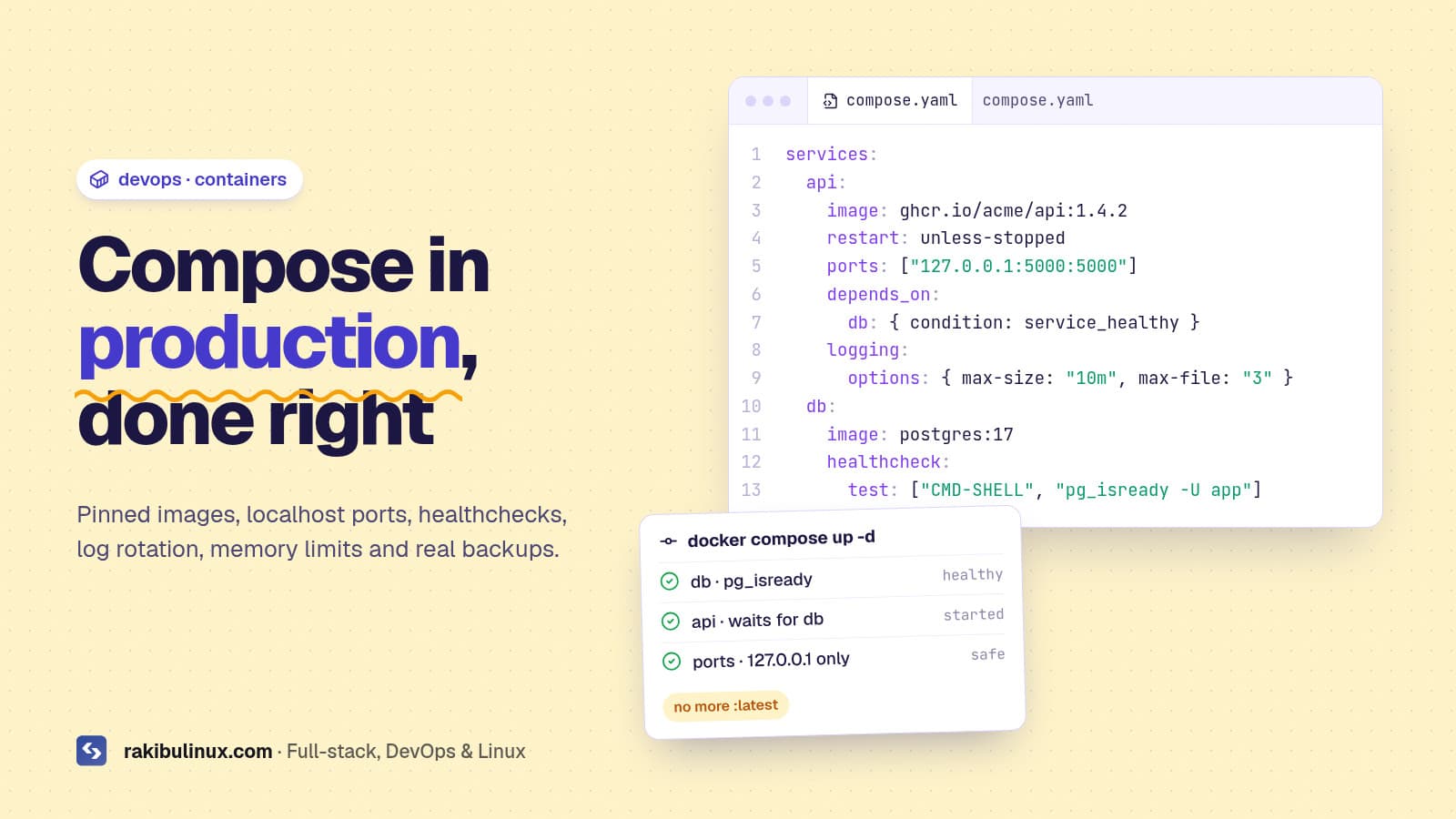
Docker Compose is fine in production on one server if you pin images, bind ports to 127.0.0.1, add healthchecks, rotate logs, limit memory and back up volumes.
Plenty of people will tell you Compose is "only for development". For a single server running a web app, an API, a database and a worker, it's often the most sensible production tool there is: one file describes the whole stack, and anyone can read it. Where Compose setups go wrong is the defaults. Out of the box, Docker publishes ports to the whole internet past your firewall, keeps logs until the disk is full, restarts nothing after a reboot and lets one container eat all the memory. This is the 10-point checklist I apply when I dockerize a client's app for production.
Key takeaways
- Pin image versions (
postgres:17, notlatest) so a restart never surprises you with a major upgrade. - Publish ports on 127.0.0.1 and put Nginx in front. Docker's port publishing bypasses UFW.
- Healthchecks plus
depends_on: condition: service_healthystop your app from starting before the database is ready. - Rotate logs and cap memory, or one noisy container can fill the disk or trigger the OOM killer for the whole server.
- Volumes are not backups. Dump databases on a schedule and copy them off the server.
A production-ready compose.yaml
Here's the shape I start from for a Node.js API with PostgreSQL. The checklist below explains each choice.
services:
  api:
    image: ghcr.io/acme/api:1.4.2
    restart: unless-stopped
    env_file: .env
    ports:
      - "127.0.0.1:5000:5000"
    depends_on:
      db:
        condition: service_healthy
    healthcheck:
      test: ["CMD", "wget", "-qO-", "http://localhost:5000/health"]
      interval: 30s
      timeout: 5s
      retries: 3
    deploy:
      resources:
        limits:
          memory: 768M
    logging:
      driver: json-file
      options: { max-size: "10m", max-file: "3" }

  db:
    image: postgres:17
    restart: unless-stopped
    env_file: .env.db
    volumes:
      - pgdata:/var/lib/postgresql/data
    healthcheck:
      test: ["CMD-SHELL", "pg_isready -U $${POSTGRES_USER}"]
      interval: 10s
      timeout: 5s
      retries: 5
    logging:
      driver: json-file
      options: { max-size: "10m", max-file: "3" }

volumes:
  pgdata:
Notice what's missing: there's no version: line at the top. Current Docker Compose ignores it and prints a warning that it's obsolete. And the database has no ports at all, because only the API needs to reach it, over Compose's internal network.
The 10-point checklist
1. Pin every image to a version
latest means "whatever was newest when this server last pulled". A routine docker compose pull can jump PostgreSQL a major version, and a new major version can't read the old data directory. Pin to a major or exact version, and upgrade on purpose. For your own images, tag each build with the version or git commit, so rolling back is just changing the tag.
2. Publish ports on 127.0.0.1, not 0.0.0.0
"5000:5000" listens on every network interface, and Docker writes its own iptables rules that skip UFW. Your API, or worse your database, ends up open to the internet while ufw status says it's blocked. Always write "127.0.0.1:5000:5000" and let Nginx handle public traffic with HTTPS. I covered this trap in detail in Docker bypasses UFW: how to fix it.
3. Set a restart policy
Without one, containers stay stopped after a crash or a server reboot. restart: unless-stopped brings them back unless you stopped them on purpose. If a container restarts in a loop, the policy isn't the problem; read its logs. My guide to a Docker container that keeps restarting covers the usual causes.
4. Add healthchecks and wait for them
Plain depends_on only waits for the database container to start, not to accept connections. Your API boots, fails to connect, and crashes or logs errors. With a healthcheck on the database and condition: service_healthy, Compose waits until pg_isready succeeds. A healthcheck on the API also makes docker ps show (unhealthy) when it hangs, which a monitor can alert on.
5. Rotate logs
Docker's default json-file logging driver keeps everything with no size limit. A chatty app writing errors in a loop can fill the disk in days, and then the database stops writing too. The max-size and max-file options above cap each container at about 30 MB. You can also set the same defaults for every container in /etc/docker/daemon.json. If a disk has already filled up, my "No space left on device" guide shows how to find what ate it.
6. Limit memory
One leaking container can push the whole server into swap or wake the kernel's OOM killer, which may kill your database instead of the leaking process. deploy.resources.limits.memory caps the container so only it gets restarted. For Node.js, also set --max-old-space-size a little below the limit so the app handles memory pressure itself.
7. Keep secrets out of the image and the repo
Use env_file with a .env file that lives only on the server, owned by the deploy user with chmod 600, and listed in .gitignore and .dockerignore. Never COPY .env into an image: anyone who can pull the image can read it. Note that values in env_file can still be seen with docker inspect, so limit who's in the docker group; membership is equivalent to root, as I explained in the docker.sock permission guide.
8. Run as a non-root user
Add a USER line to your Dockerfile (official Node images include a node user) so a compromised app can't do whatever it likes inside the container. Don't mount /var/run/docker.sock into app containers; it hands them control of the host.
9. Back up volumes properly
A named volume survives docker compose down, but not a disk failure, a deleted server or down -v. For databases, don't copy the data folder while it's running; take a logical dump:
docker compose exec -T db pg_dump -U app -Fc appdb > /backups/appdb-$(date +%F).dump
Run it from cron, copy the files offsite, and test a restore now and then. My Linux backup guide covers rotation and offsite copies.
10. Deploy the same way every time
A predictable deploy is three commands:
docker compose pull
docker compose up -d --remove-orphans
docker image prune -f
up -d only recreates containers whose image or config changed. Prune old images afterwards or they pile up on disk. For automatic deploys on every push, I use a GitHub Actions workflow like the one in deploying to a VPS with auto-rollback.
When Compose isn't enough
Compose runs on one machine. If you need to survive a whole server failing without downtime, spread load across several machines, or let many teams deploy independently, look at Docker Swarm, Kubernetes, or a managed platform. For most small businesses and early-stage SaaS products, a well-configured server with Compose, good backups and monitoring is cheaper and simpler, and it's what I recommend until the traffic proves otherwise.
Frequently asked questions
Is Docker Compose good for production?
Yes, for apps that run on a single server. Use pinned images, restart policies, healthchecks, log rotation, memory limits, localhost-only ports behind a reverse proxy, and real database backups. For multi-server high availability, use an orchestrator instead.
Do I still need the version line in docker-compose.yml?
No. Current Docker Compose ignores the top-level version key and warns that it's obsolete. You can delete it.
Why does my app start before the database is ready?
Because plain depends_on only waits for the container to start. Add a healthcheck to the database service and use depends_on with condition: service_healthy on the app.
How do I stop Docker logs from filling the disk?
Set the json-file driver's max-size and max-file options per service, or as defaults in /etc/docker/daemon.json followed by a Docker restart. New containers pick up the defaults; existing ones need to be recreated.
Should my database run in Docker in production?
It's fine for small and medium apps if the data lives in a named volume, the image version is pinned and you take regular logical backups. For larger databases, a managed database or a dedicated database server makes upgrades and backups easier.
Want your app dockerized properly?
I write production Dockerfiles and Compose stacks with healthchecks, safe networking, log rotation, backups and a repeatable deploy. See my Docker and Docker Compose service, my other DevOps services, or contact me with your current setup.

Written by
MD Rakibul Islam Rakib
Full-stack developer, DevOps engineer and Linux system administrator with 5+ years of production experience. I deploy, harden and fix servers and web apps for clients worldwide, and everything in this article runs on real servers I manage, including this site.
- Docker Compose production
- docker compose healthcheck
- depends_on service_healthy
- docker log rotation
- Docker UFW
- docker compose best practices