Skip to content
All articles
7 min read

npm ERESOLVE Unable to Resolve Dependency Tree: Fix

MD Rakibul Islam RakibMD Rakibul Islam RakibFull-stack developer, DevOps & Linux engineer
npm ERESOLVE Unable to Resolve Dependency Tree: Fix

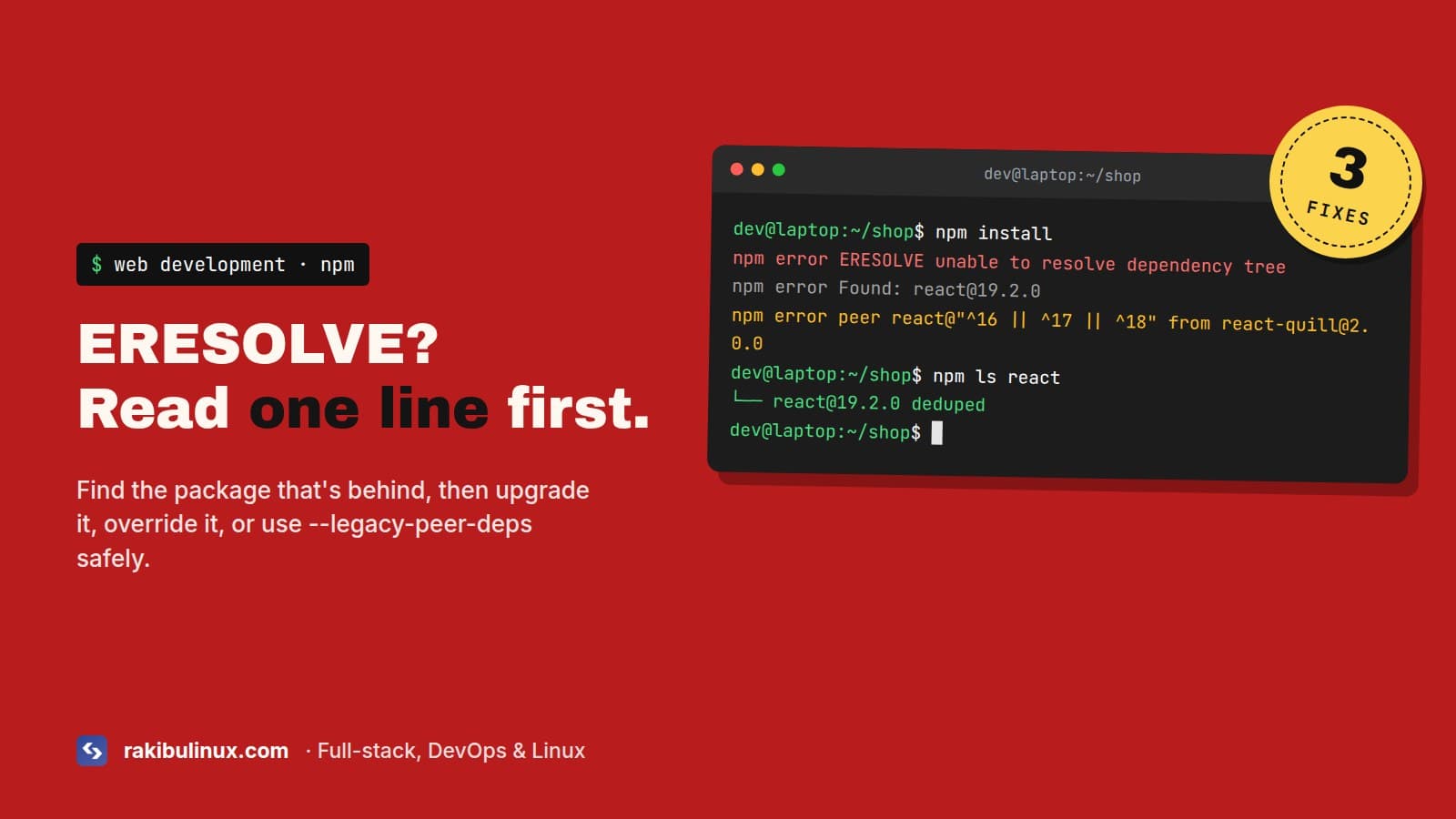
ERESOLVE means a package's peer range, usually React, doesn't match your version. Upgrade that package, add a scoped override, or use --legacy-peer-deps last.

Since React 19 came out, this has become one of the most common npm errors. Somebody runs npm install on a Next.js 15 or 16 project, adds an editor or a chart library, and gets a wall of red. The usual advice online is "just add --force". Sometimes that's fine. Sometimes it ships a library that crashes the page in production. That happened on this very site: the rich text editor we used, react-quill, declares support for React 16 to 18 only, and on React 19 it didn't just warn, it broke. So before you force anything, take two minutes to read what npm is telling you.

Key takeaways

  • The error names the package that's out of date in the "Could not resolve dependency" line. Start there.
  • Best fix: upgrade that package to a version that supports your React (check its changelog).
  • Second best: an overrides entry in package.json, scoped to that one package.
  • --legacy-peer-deps ignores all peer ranges in the project, and --force installs whatever it gets. Both hide the problem instead of fixing it.
  • If you do use a flag, put it in a committed .npmrc, or npm ci fails in CI and on the server.

How to read the error

Here's a real one from a React 19 project (npm 10 and newer print npm error; older versions print npm ERR!):

npm error code ERESOLVE
npm error ERESOLVE unable to resolve dependency tree
npm error
npm error While resolving: my-app@0.1.0
npm error Found: react@19.2.0
npm error node_modules/react
npm error   react@"^19.2.0" from the root project
npm error
npm error Could not resolve dependency:
npm error peer react@"^16 || ^17 || ^18" from react-quill@2.0.0
npm error node_modules/react-quill
npm error   react-quill@"^2.0.0" from the root project

Only three lines matter:

  • Found: react@19.2.0 is what you have.
  • peer react@"^16 || ^17 || ^18" is what the package says it supports.
  • from react-quill@2.0.0 is the package that's behind.

So the problem isn't "npm is broken". One package hasn't said it supports React 19 yet. The question is whether it actually works on React 19 anyway. Sometimes the range is just old and the code is fine. Sometimes the package uses an API React 19 removed, like findDOMNode or string refs, and it will crash.

my-app react@19.2.0 react-quill@2.0.0 peer react@^16 || ^17 || ^18 ✗ ERESOLVE ✓ upgrade or override
react-quill declares React 16 to 18 as its peer, and the project has React 19, so npm refuses to install. Upgrading the package, or a scoped override after testing, makes the tree resolve.

Fix 1: Upgrade the package (do this first)

npm view react-quill peerDependencies
npm view react-quill versions --json | tail -n 5

If a newer version supports your React, install it and you're done. For popular packages that's usually the case now. If the package is abandoned (react-quill's last release was in 2022), look for the maintained fork or a replacement. For react-quill that's react-quill-new. We ended up rendering stored HTML without the editor library on public pages, which was less code anyway.

Fix 2: Override the peer range for one package

If you've tested the package on your React version and it works, tell npm so, for that package only:

{
  "dependencies": {
    "react": "^19.2.0",
    "react-dom": "^19.2.0",
    "some-chart-lib": "^3.1.0"
  },
  "overrides": {
    "some-chart-lib": {
      "react": "$react",
      "react-dom": "$react-dom"
    }
  }
}

$react means "whatever version the root project uses", so you don't have to update the override when you upgrade React. Delete node_modules and package-lock.json once, run npm install, and commit the new lockfile. I prefer this to a global flag because it's written down, it's limited to one package, and you can delete it once the library catches up.

Fix 3: --legacy-peer-deps (when you're in a hurry)

npm install --legacy-peer-deps

This makes npm behave like npm 6: peer dependencies aren't installed automatically and conflicts are ignored, for every package in the tree. It works, and it's what most tutorials say. The catch is that it also hides the next conflict you'll introduce, and if you forget it on the server, the deploy fails there. If you use it, make it permanent and visible:

echo "legacy-peer-deps=true" >> .npmrc
git add .npmrc

That file is read by npm install, npm ci, GitHub Actions and your Docker build, so they all resolve the tree the same way.

What about --force?

--force is different. It doesn't ignore peers; it installs the conflicting versions anyway and may fetch duplicate copies. Two copies of React in one bundle gives you the famous "Invalid hook call" error at runtime. I don't use --force for peer conflicts.

When it only fails in CI or on the server

Works on your laptop, fails in GitHub Actions with ERESOLVE. Three usual reasons:

  • You installed locally with --legacy-peer-deps but didn't commit an .npmrc. CI runs npm ci without the flag.
  • A different npm version. npm 7 and newer install peer dependencies; npm 6 didn't. Pin Node in CI with actions/setup-node to the same major version you use locally.
  • The lockfile is out of date. npm ci refuses to touch it. Run npm install locally and commit package-lock.json.

pnpm and Bun don't stop on this by default. pnpm prints "unmet peer" warnings and keeps going, Bun ignores them. That doesn't mean the package works, only that you'll find out at runtime. Run your app and click through the page that uses it.

Check it actually works

npm ls react          # should show ONE react version, deduped everywhere
npm run build
npm start             # open the page that uses the package

If npm ls react shows two different versions, fix that before shipping. That's the "Invalid hook call" bug waiting to happen.

The same fix in Yarn and pnpm

If you use another package manager, the override looks a little different. Yarn uses resolutions in package.json, for example "resolutions": { "react-quill/react": "19.2.0" }. pnpm can relax a single peer range without forcing anything else:

"pnpm": {
  "peerDependencyRules": {
    "allowedVersions": { "react": "19" }
  }
}

Same rule as with npm: write it down in package.json, keep it as narrow as you can, and delete it when the package catches up.

Frequently asked questions

Is --legacy-peer-deps safe?

It's safe to install, but it turns off peer dependency checks for the whole project. Use it when you've confirmed the packages work, commit it in .npmrc, and prefer a scoped overrides entry when only one package is the problem.

What's the difference between --force and --legacy-peer-deps?

--legacy-peer-deps ignores peer dependencies. --force installs conflicting versions anyway and can put two copies of a package, like React, in your app. For peer conflicts, --legacy-peer-deps or overrides is the safer choice.

Why do I get ERESOLVE after upgrading to React 19?

Many libraries still list react@"^16 || ^17 || ^18" as their peer range. Upgrade those libraries, replace abandoned ones, or override their peer range after testing them on React 19.

How do I fix ERESOLVE in GitHub Actions?

Commit an .npmrc with the same setting you used locally, commit an up-to-date package-lock.json, and use the same Node major version in CI as on your machine.

Dependency hell blocking a release?

I untangle React 19 and Next.js upgrades, replace abandoned packages and get builds green again in CI. Book my bug fix service for React, Next.js and Node.js, see my web development services, or contact me with the full error output. If the build gets past npm and then runs out of memory, read how to fix JavaScript heap out of memory in next build.

MD Rakibul Islam Rakib

Written by

MD Rakibul Islam Rakib

Full-stack developer, DevOps engineer and Linux system administrator with 5+ years of production experience. I deploy, harden and fix servers and web apps for clients worldwide, and everything in this article runs on real servers I manage, including this site.

  • npm eresolve
  • unable to resolve dependency tree
  • legacy-peer-deps
  • react 19 peer dependency
  • npm overrides

Keep reading

Next.js 16 Images Broken or Blurry After Upgrade? Fix
Website DesignOct 8, 2026

Next.js 16 Images Broken or Blurry After Upgrade? Fix

Next.js 16 changed next/image defaults: quality is fixed at 75, private IPs are blocked, query strings need localPatterns. Here's each fix. Next.js 16 changed six image defaults at once. None of them breaks the build, which is what makes them annoying: the site deploys, and then a client emails to say the hero photo looks soft, the logo is gone, or the product images from their own API are all broken. This site runs Next.js 16 too, so these are the settings I check after every upgrade. Here's each symptom with its cause and the config that fixes it. Key takeaways Blurry images: quality={90} is silently turned into 75. Add the values you use to images.qualities . Images from localhost , a Docker service name or a private IP return 400: set images.dangerouslyAllowLocalIP , or better, use a public URL. /logo.png?v=2 fails: local images with query strings need images.localPatterns . New image doesn't show up: optimized images are cached for 4 hours now. Change the file name, not just the file. Move from images.domains to remotePatterns , and from priority to preload . Images look blurry or low quality Before 16, any quality from 1 to 100 was allowed. Now the default list is just [75] , and the quality prop is rounded to the closest allowed value. So quality={95} on your hero image quietly becomes 75. No warning. Fix it by listing every quality you actually use: // next.config.ts const nextConfig = { images: { qualities: [75, 90], }, }; Keep the list short. Every extra value is another variant the server has to generate and cache, and the limit exists so nobody can ask your server for 100 versions of every image. 75 for most images and 90 for the hero and product photos is enough on almost every site I build. Next.js 16 allows only quality 75 by default and rounds every other quality prop to it. Listing 90 in images.qualities lets the hero image keep its quality. Images from your own API or storage return 400 This is the one that takes self-hosted sites down. Next.js 16 refuses to optimize images whose host resolves to a private IP address: localhost , 127.0.0.1 , 10.x , 172.16-31.x , 192.168.x . It's protection against SSRF, where an attacker uses your image optimizer to fetch things from your internal network. It hits you if your src points at an internal address, which is common with Docker Compose ( http://api:5000/uploads/a.jpg ), MinIO or RustFS on the same server, or an API that returns http://localhost:5000/... URLs. The browser gets a 400 from /_next/image , and the image is broken. In dev on your laptop it might still work, because your API is on a public URL there. The right fix is to give images a public URL ( https://cdn.example.com/... ) and add it to remotePatterns . If the images genuinely live on a private network you control, you can turn the check off: images: { dangerouslyAllowLocalIP: true, // only if you understand the SSRF risk }, A third option for some cases: if the files are already optimized (they went through an upload pipeline that resizes them), set unoptimized on those images, and the browser loads them directly. Local images with a query string fail Cache-busting like <Image src="/logo.png?v=3" /> now needs a localPatterns entry, or Next.js rejects it: images: { localPatterns: [ { pathname: "/assets/**", search: "" }, // no query string allowed { pathname: "/logo.png", search: "?v=3" }, // exact query only ], }, Once you define localPatterns , any local path not listed returns 400. Add every folder you load images from, or you'll fix the logo and break everything else. Easier: drop the query string and rename the file when it changes ( logo-v3.png ), or import the image statically ( import logo from "./logo.png" ), which gets a content hash automatically. "hostname is not configured under images" Error: Invalid src prop (https://cdn.example.com/a.jpg) on `next/image`, hostname "cdn.example.com" is not configured under images in your `next.config.js` Not new in 16, but you'll see it when you remove the deprecated images.domains . remotePatterns replaces it, and you can now write it with URL objects: images: { remotePatterns: [ new URL("https://cdn.example.com/**"), { protocol: "https", hostname: "**.amazonaws.com", pathname: "/my-bucket/**" }, ], }, Keep the pattern as tight as you can. hostname: "**" makes your server an open image proxy for the whole internet, on your bandwidth bill. You replaced an image and the old one still shows images.minimumCacheTTL went from 60 seconds to 4 hours (14400). If you upload a new file under the same name and the source doesn't send its own Cache-Control , the old optimized version is served for up to 4 hours. Use a new file name for new content, which is good practice anyway because browsers and CDNs cache too. If an image really has to update in place, lower the TTL: images: { minimumCacheTTL: 60 }, For a quick manual flush on a self-hosted app, delete .next/cache/images and restart. Images behind a redirect break The optimizer now follows at most 3 redirects (it used to be unlimited). Some image hosts and tracking links redirect more than that. Use the final URL as src , or raise images.maximumRedirects if you can't. You can check how many hops an image URL takes with curl -sIL URL | grep -i "^location" . The priority warning The priority prop is deprecated. Use preload for the image that's your Largest Contentful Paint, usually the hero. Most of the time fetchPriority="high" on that image is all you need. Don't preload more than one or two images, or none of them gets priority. My guide to fixing slow LCP goes deeper into which image to pick. One small change you probably won't notice: 16 was removed from the default imageSizes . If you use tiny 16 px icons through next/image , add it back or use a plain <img> for icons, which is what I'd do anyway. Debug any broken image in 30 seconds Right-click the broken image, open it in a new tab, and read the URL. It looks like /_next/image?url=...&w=1080&q=75 . The response tells you which rule failed: a 400 with a message about the URL, a host or local pattern, or a 500 when fetching the source failed. Then check the server's logs ( pm2 logs ), because the optimizer logs the real reason there. After-upgrade checklist List every quality value you use in images.qualities . Open each page with images from your API or storage on the production server, not just locally. Search for ? in local image paths, and add localPatterns or rename the files. Replace images.domains with tight remotePatterns . Swap priority for preload on the LCP image and run PageSpeed Insights on the homepage. Frequently asked questions Why are my images blurry in Next.js 16? The default allowed quality is now only 75, and other quality values are rounded to it. Add the values you need to images.qualities in next.config , for example [75, 90] . Why do images from localhost fail in Next.js 16? Next.js 16 blocks image optimization for hosts that resolve to private IP addresses. Serve images from a public URL, or set images.dangerouslyAllowLocalIP: true if the source is on a private network you trust. Is images.domains removed in Next.js 16? It's deprecated, not removed. Switch to images.remotePatterns , which also accepts new URL("https://host/**") entries. How long does Next.js cache optimized images? At least 4 hours by default since Next.js 16 ( minimumCacheTTL: 14400 ), longer if the source image sends a longer Cache-Control . Site looks worse after the upgrade? I upgrade Next.js sites without losing image quality, speed or rankings. Book my Next.js bug fix service , get a technical SEO audit and fix if speed scores dropped, or contact me . Still on middleware.ts ? Read how to move to proxy.ts next.

Read article →
EADDRINUSE: Address Already in Use? Find Who Owns the Port
Linux System AdminOct 8, 2026

EADDRINUSE: Address Already in Use? Find Who Owns the Port

EADDRINUSE means another process already listens on that port. Find it with ss -ltnp, then stop it through pm2, Docker or systemd so it stays stopped. Killing the process is the answer you'll find everywhere, and it works for about five minutes. On servers, the port is often taken by something that restarts itself: pm2 bringing back an app someone thought they'd stopped, a Docker container with restart: always , or a systemd service nobody remembers creating. So the useful question isn't "how do I kill it" but "what is it, and who keeps starting it". The error node:net:1940 const ex = new UVExceptionWithHostPort(err, 'listen', address, port); ^ Error: listen EADDRINUSE: address already in use :::3000 at Server.setupListenHandle [as _listen2] (node:net:1940:16) code: 'EADDRINUSE', errno: -98, syscall: 'listen', address: '::', port: 3000 Next.js says it more politely: ⚠ Port 3000 is in use, trying 3001 instead. That looks harmless in development, but in production it means your app is now on a port Nginx doesn't proxy to, and the site returns 502. Key takeaways sudo ss -ltnp 'sport = :3000' shows the process ID and name holding the port. Check pm2, Docker and systemd before you kill anything, or the process restarts. A dev server suspended with Ctrl+Z still holds its port. Ctrl+C stops it; Ctrl+Z only pauses it. On macOS, port 5000 and 7000 are taken by AirPlay Receiver. Handle SIGTERM in your app, so restarts release the port cleanly. Step 1: Find what's on the port sudo ss -ltnp 'sport = :3000' State Recv-Q Send-Q Local Address:Port Peer Address:Port Process LISTEN 0 511 *:3000 *:* users:(("next-server (v1",pid=48211,fd=21)) Use sudo , or you won't see processes owned by other users and the Process column stays empty. lsof -i :3000 works too if it's installed. Then find out what that PID really is and who started it: ps -o pid,ppid,user,etime,cmd -p 48211 ps -o pid,cmd -p $(ps -o ppid= -p 48211) # its parent The parent is the useful part. PM2 v6...: God Daemon means pm2 owns it. containerd-shim or docker-proxy means Docker. PID 1 ( systemd ) means a service or an orphaned process. A bash or zsh means someone's terminal. Killing the process on port 3000 doesn't help if a process manager owns it. pm2, Docker or systemd starts it again and the new app still can't bind. Stop it through its manager instead. Step 2: Stop it the right way It's pm2 pm2 list pm2 stop web # or pm2 delete web if it shouldn't exist The classic mistake: the app runs under pm2, and then someone SSHes in and runs npm start by hand to "test something". Or two pm2 apps with different names both use port 3000, one crashes in a loop, and pm2 restarts it forever. Look for a restart counter in pm2 list that keeps going up. That loop also explains a lot of mystery 502 errors. My 502 Bad Gateway guide covers what Nginx sees in that situation. It's Docker docker ps --format '{{.Names}}\t{{.Ports}}' | grep 3000 docker compose down # in that project's folder A container publishing 3000:3000 holds the port on the host, even if the app inside has crashed. With restart: unless-stopped it comes back after you kill it, and after every reboot. It's a systemd service systemctl status 48211 # shows which unit owns the PID sudo systemctl disable --now old-app.service Typing a PID into systemctl status is a trick I use all the time. It tells you the unit name directly. It's an old terminal session If you pressed Ctrl+Z instead of Ctrl+C, the dev server is suspended, not stopped, and still holds the port. In that terminal, jobs lists it and fg brings it back so you can Ctrl+C it. If the terminal is gone, stop it by PID: kill 48211 # SIGTERM, lets it clean up sleep 2; kill -9 48211 2>/dev/null # only if it ignored SIGTERM Or in one go: sudo fuser -k 3000/tcp . Use that when you're sure nothing will restart it. macOS: port 5000 is AirPlay On macOS Monterey and later, the AirPlay Receiver listens on ports 5000 and 7000. A Flask or Express app on 5000 fails with EADDRINUSE on a fresh Mac, and lsof shows ControlCenter . Either turn off AirPlay Receiver in System Settings, under General, AirDrop & Handoff, or use a different port. I just use another port. It happens on every restart (nodemon, tsx watch) Your watcher starts the new process before the old one has released the port. Usually the old one doesn't exit on SIGTERM because something keeps the event loop alive: an open database pool, a Redis client, a setInterval . Close the server on shutdown: const server = app.listen(PORT); for (const sig of ["SIGTERM", "SIGINT"]) { process.on(sig, () => { server.close(() => process.exit(0)); setTimeout(() => process.exit(1), 10_000).unref(); // don't hang forever }); } In NestJS, call app.enableShutdownHooks() in main.ts and close your connections in onModuleDestroy . pm2 also benefits: pm2 reload sends SIGINT and waits kill_timeout (1.6 seconds by default) before force-killing. It happens in tests Every Jest test file that imports your server.js calls listen(3000) , and test files run in parallel. Export the app without listening, and only call listen() in the entry file. Supertest takes the app directly and picks a free port on its own: // app.ts: export const app = express(); ... no listen here // server.ts: app.listen(process.env.PORT ?? 3000); // test: await request(app).get("/health").expect(200); Use PORT from the environment Hard-coded ports are why two apps on one server end up fighting. Read process.env.PORT , write each app's port in its env file or pm2 ecosystem file, and keep a short list in the server's README of which app owns which port. Bind internal apps to 127.0.0.1 instead of all interfaces, so only Nginx can reach them. :::3000, 0.0.0.0 and localhost The :::3000 in the error means Node tried to listen on every IPv6 address, which on Linux also covers IPv4. So an app bound to 127.0.0.1:3000 and another trying :::3000 still collide. That part is expected. The related surprise is the opposite case: no error, but Nginx can't reach the app. Since Node 17, localhost can resolve to the IPv6 address ::1 first. An app listening on 127.0.0.1 and an Nginx config that proxies to http://localhost:3000 may not meet. Use the same explicit address on both sides, for example app.listen(3000, "127.0.0.1") and proxy_pass http://127.0.0.1:3000 . Frequently asked questions How do I find which process is using port 3000 on Linux? Run sudo ss -ltnp 'sport = :3000' or sudo lsof -i :3000 . Both show the PID and process name. Use sudo to see processes of other users. How do I kill the process on port 3000? sudo fuser -k 3000/tcp or kill <pid> . But check first whether pm2, Docker or systemd started it, or it restarts within seconds. Stop it through whatever manages it. Why does EADDRINUSE come back after I kill the process? A process manager restarts it. Check pm2 list , docker ps and systemctl status <pid> , and stop or disable it there. Why is port 5000 in use on my Mac? macOS AirPlay Receiver listens on ports 5000 and 7000. Turn it off in System Settings or run your app on another port. Apps fighting over your server? I sort out servers where apps, pm2, Docker and old services step on each other, and set them up so restarts are clean. Book my emergency Linux server fix , see my Linux system admin services , or contact me with the output of ss -ltnp .

Read article →
ENOSPC: System Limit for File Watchers Reached (Fix)
Linux System AdminOct 8, 2026

ENOSPC: System Limit for File Watchers Reached (Fix)

This ENOSPC error isn't about disk space: Linux ran out of inotify watches. Raise fs.inotify.max_user_watches in sysctl.d and stop watching node_modules. The machine I write this on has 64 GB of RAM, and Next.js dev with Turbopack still runs into the inotify limit on it. I raised the limit to 524,288 a while ago, and with VS Code, a desktop app or two, a Next.js monorepo and a NestJS API all watching files at the same time, it still runs out. So the "just raise the number" answer you find everywhere is half the story. Here's the whole thing: what the error means, how to see who's using the watches, the permanent fix, and the cases where raising the limit isn't enough. The error Error: ENOSPC: System limit for number of file watchers reached, watch '/home/me/app/node_modules/.pnpm/...' at FSWatcher.<computed> (node:internal/fs/watchers:247:19) errno: -28, syscall: 'watch', code: 'ENOSPC' You'll see it from next dev , Vite, webpack, Nodemon, Jest in watch mode, Angular, React Native's Metro, or VS Code's warning "Visual Studio Code is unable to watch for file changes in this large workspace". ENOSPC normally means "no space left on device", which is why so many people go and delete files first. Your disk is fine. If df -h really shows a full disk, that's a different problem, and my "No space left on device" guide is the one you want. Key takeaways Check the current limit: cat /proc/sys/fs/inotify/max_user_watches . Raise it permanently with a file in /etc/sysctl.d/ , then sudo sysctl --system . No reboot needed. The limit is per user, across all your programs. One editor can eat most of it. "Too many open files" from a watcher is a different limit, max_user_instances . In Docker, the limit comes from the host kernel. Change it on the host. Step 1: See the limit and who is using it cat /proc/sys/fs/inotify/max_user_watches cat /proc/sys/fs/inotify/max_user_instances On newer kernels the default for watches scales with RAM, so it varies a lot between machines. Older systems and many VPS images still sit at 8,192, which a single Next.js project can use up. To see which processes hold the watches (run with sudo to include every user): for p in $(find /proc/*/fd -lname 'anon_inode:inotify' 2>/dev/null | cut -d/ -f3 | sort -u); do printf "%8d %s\n" "$(cat /proc/$p/fdinfo/* 2>/dev/null | grep -c '^inotify')" "$(cat /proc/$p/comm)" done | sort -rn | head When I ran this on my machine, one desktop app alone held about 26,000 watches. Usually the top of the list is an editor or a dev server watching node_modules . That tells you whether to raise the limit or fix the tool. Example: inotify watches are shared by every program you run. An editor, a dev server and a type checker fill a 65,536 limit, and the next watcher fails with ENOSPC. At 524,288 the same load uses about an eighth. Step 2: Raise the limit permanently echo "fs.inotify.max_user_watches=524288" | sudo tee /etc/sysctl.d/99-inotify.conf echo "fs.inotify.max_user_instances=512" | sudo tee -a /etc/sysctl.d/99-inotify.conf sudo sysctl --system Check it took effect with the cat commands from step 1, then restart your dev server. The new limit applies right away; the server just has to set up its watchers again. Name the file 99-something.conf . Files in /etc/sysctl.d/ and /usr/lib/sysctl.d/ are applied in name order, and the last one wins. My Ubuntu install ships /usr/lib/sysctl.d/30-localsearch.conf , which sets watches to 65,536. A file named 10-inotify.conf would be overridden by it on every boot. That's a common reason the fix "doesn't survive a reboot". Find every place that sets it: grep -r inotify /etc/sysctl.conf /etc/sysctl.d/ /usr/lib/sysctl.d/ /run/sysctl.d/ 2>/dev/null Does a high limit use a lot of memory? Each watch that is actually in use costs about 1 KB of kernel memory on 64-bit systems. The limit is only a ceiling. 524,288 means "up to about 512 MB if every watch is used", which only happens if something is watching half a million files. On a laptop that's fine. On a small VPS, ask why something is watching that many files at all. Step 3: Stop watching node_modules Raising the limit treats the symptom. The tools shouldn't be watching tens of thousands of dependency files in the first place. VS Code: in settings.json , add "files.watcherExclude": { "**/node_modules/**": true, "**/.next/**": true, "**/dist/**": true } . It's the biggest win for most people. Vite: server.watch.ignored in vite.config.ts for large generated folders. Nodemon: watch only src : nodemon --watch src . Jest: watchPathIgnorePatterns for build output. Close old dev servers. Three forgotten next dev processes in other terminals each hold their own watches. pgrep -af "next dev" finds them. Step 4: When you can't raise the limit, poll On shared servers, in some containers or on WSL with files on the Windows side, you may not be allowed to change sysctl values, or inotify doesn't work at all. Then make the watcher poll instead. It costs some CPU but never hits the limit: # webpack / Next.js with --webpack WATCHPACK_POLLING=true next dev --webpack # chokidar-based tools (many older dev servers) CHOKIDAR_USEPOLLING=true npm run dev That first line is literally how I run this site's dev server, because Turbopack's watcher still exhausts the limit on this machine alongside everything else that's running. Docker and CI Containers share the host's kernel, so sysctl inside a container either fails or changes nothing useful. Set the limit on the host, or on the VM that runs Docker Desktop. In CI, a test run in watch mode is a mistake anyway. Run Jest and Vitest once with --watch=false or vitest run . "Too many open files" is the other limit Error: EMFILE: too many open files, watch inotify_init: Too many open files This one is usually about inotify instances , not watches. Each program that watches files opens at least one instance, and the default per user is 128. Raise fs.inotify.max_user_instances to 512 as in step 2. If it's the regular open file limit instead, ulimit -n shows it, and that's a systemd or limits.conf change. Seeing it on a production server? A production server shouldn't be watching files at all. On a server the usual cause is pm2 start app.js --watch left over from setup, or an app started with npm run dev instead of the production command. pm2's watch mode follows every file under the app folder, including node_modules and upload folders, and restarts the app on every change. Check with pm2 describe app | grep watch , turn it off with pm2 restart app --watch false or remove watch from the ecosystem file, and run pm2 save . Raising the limit on a server only hides that mistake. Frequently asked questions Does ENOSPC mean my disk is full? Not in this case. When the message says "System limit for number of file watchers reached", Linux ran out of inotify watches. Your disk can be empty and still get this error. What should max_user_watches be set to? 524,288 is the common value for development machines and is safe with 8 GB of RAM or more. On servers, keep it lower and find out why something needs so many watches. Why does the error come back after a reboot? The value was set with sysctl -w , which doesn't persist, or another file in /usr/lib/sysctl.d/ with a later name overrides yours. Use a file named 99-inotify.conf in /etc/sysctl.d/ . How do I fix ENOSPC in Docker? Raise fs.inotify.max_user_watches on the host machine. Containers use the host kernel's limits. Polling ( WATCHPACK_POLLING=true or CHOKIDAR_USEPOLLING=true ) is the fallback if you can't change the host. Dev environment fighting you? I set up and fix Linux development and production environments for Node.js teams, from watcher limits to full servers. Book my bug fix service , see my Linux system admin services , or contact me with the error and the output of the watcher script above.

Read article →