Next.js Hydration Error: Causes and Fixes (2026)
 MD Rakibul Islam RakibFull-stack developer, DevOps & Linux engineer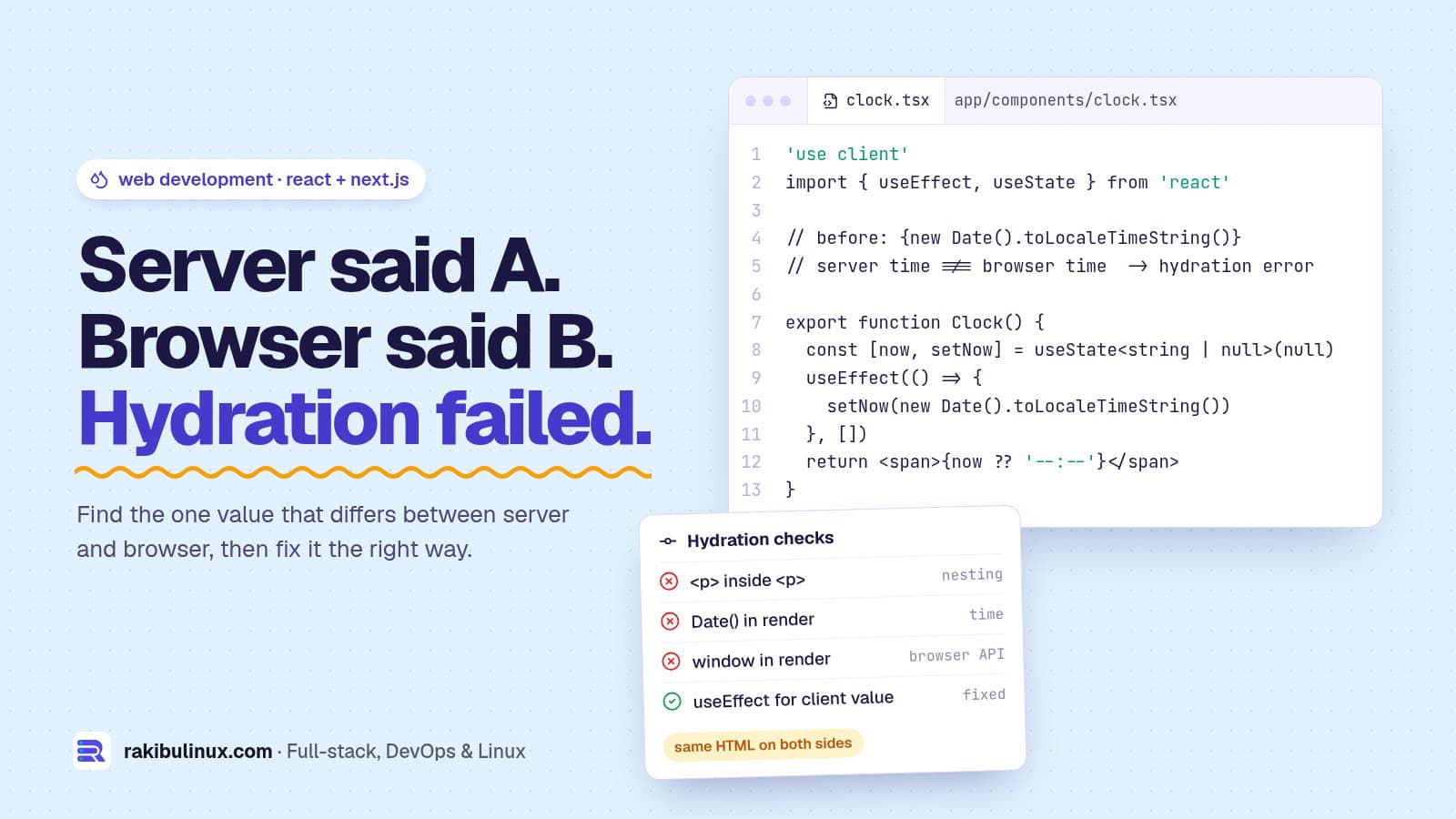
A Next.js hydration error means the HTML from the server differs from React's first render in the browser. Find the differing value and make both renders match.
"Hydration failed because the server rendered HTML didn't match the client" is one of the most searched React errors, and it scares people because the message is vague. It isn't random, though. There is always one specific value, tag or attribute that comes out differently on the server and in the browser. I build and maintain Next.js 16 apps on React 19 (this website is one), and the routine below finds that value in a few minutes almost every time.
Key takeaways
- Hydration needs identical HTML: React expects its first browser render to produce exactly what the server sent. Any difference is a mismatch.
- The usual suspects: invalid tag nesting,
Date()orMath.random()in render,window/localStoragechecks in render, and browser extensions. - Read the diff: React 19 prints the mismatching element with
+(client) and-(server) lines. Start there. - Fix in order: correct the markup, move browser-only values into
useEffect, skip SSR for truly client-only widgets, and usesuppressHydrationWarningonly for a single unavoidable value. - Test in a clean browser profile before blaming your code. Extensions inject attributes into
<html>and<body>.
What is hydration, and why does it fail?
With server rendering, Next.js sends finished HTML so the page shows instantly and search engines can read it. Then React loads in the browser, renders the same component tree again, and "hydrates" the existing HTML by attaching event handlers instead of rebuilding the DOM. For that to work, the browser's first render must produce the same text, attributes and structure as the server's. When it doesn't, React logs a hydration error and, depending on where it happens, re-renders that part of the tree on the client. You lose performance, you can get a visible flash, and in some cases interactive parts stop working.
Step 1: Read the error properly
Run the app in development (next dev) and open the page. The Next.js error overlay and the browser console show the component stack and a diff of the mismatching node. Lines starting with + are what the client rendered, lines with - are what the server sent. That diff usually names the culprit directly: a time string, a class name, an extra <div>.
Before changing code, open the same page in a private window with extensions disabled. If the error disappears, an extension (password managers, Grammarly, dark-mode and translation tools are common) is editing the DOM before React hydrates. The cause list in the official Next.js docs includes this case too.
Cause 1: Invalid HTML nesting
The browser's HTML parser repairs invalid markup, so the DOM it builds from the server HTML no longer matches React's tree. Common offenders:
- A
<div>,<ul>or another<p>inside a<p>. Rich text from a CMS rendered inside a paragraph is a classic. - An
<a>inside an<a>(a card that is a link and contains a link), or a<button>inside a<button>. - A
<tr>directly inside<table>without<tbody>.
// broken: the parser closes the <p> before the <div>
<p className="lead"><div dangerouslySetInnerHTML={{ __html: html }} /></p>

// fixed
<div className="lead" dangerouslySetInnerHTML={{ __html: html }} />
This is the fix I make most often in client projects because it costs nothing and removes the error for good.
Cause 2: Values that change between server and browser
Anything that depends on the current time, randomness or the visitor's locale and time zone produces different output on the server and in the browser:
new Date().toLocaleString(), "posted 3 minutes ago" labels, countdowns.Math.random()orcrypto.randomUUID()used for keys or IDs. Use React'suseId()for element IDs instead.Intl.NumberFormator date formatting without a fixed locale and time zone.
Render a stable placeholder on the server, then fill in the browser value after hydration:
'use client'
import { useEffect, useState } from 'react'

export function Clock() {
  const [now, setNow] = useState<string | null>(null)
  useEffect(() => {
    setNow(new Date().toLocaleTimeString())
  }, [])
  return <span>{now ?? '--:--'}</span>
}
Effects run only in the browser and only after hydration, so the first render matches the server and the real value appears a moment later. For dates that come from your database, format them on the server with an explicit time zone (timeZone: 'UTC' or the site's zone) so both sides get the same string.
Cause 3: Browser-only checks in render
Code like this renders one thing on the server and another in the browser:
// broken: server has no window, browser does
const theme = typeof window !== 'undefined'
  ? localStorage.getItem('theme')
  : 'light'
The same applies to window.innerWidth, navigator.userAgent, cookies read with document.cookie and media queries in JavaScript. Two clean fixes:
- Read it in
useEffectand store it in state, as in the clock example. For screen sizes, prefer CSS media queries so nothing differs at all. - Read it on the server when it's available there. A theme or locale stored in a cookie can be read with
cookies()fromnext/headersin a server component, so the server renders the right version from the start.
For dark mode specifically, libraries like next-themes set the class on <html> before React loads, which is why their docs tell you to add suppressHydrationWarning to the <html> tag. That's a legitimate use: one known attribute, one level deep.
Cause 4: A component that only makes sense in the browser
Maps, charts, rich text editors and widgets that touch window on import don't need to be server rendered. Load them on the client only with next/dynamic:
'use client'
import dynamic from 'next/dynamic'

const Map = dynamic(() => import('./map'), {
  ssr: false,
  loading: () => <div className="h-80 animate-pulse rounded-xl bg-muted" />,
})
In the App Router, ssr: false only works inside a client component, so put the dynamic import in a small 'use client' wrapper. Give the placeholder the same height as the widget so the page doesn't jump, which also protects your Core Web Vitals (see my guide on fixing slow LCP).
Cause 5: Something between the server and the browser edits the HTML
If the error only happens in production, look at what sits in front of your app. CDN features that rewrite HTML (minification, email obfuscation, injected scripts) change the markup after Next.js sends it. The Next.js docs specifically call out Cloudflare Auto Minify. iOS Safari can also turn phone numbers and addresses into links; disable that with:
<meta name="format-detection" content="telephone=no, date=no, email=no, address=no" />
In the App Router you can set this through the formatDetection field of the metadata object instead of writing the tag by hand.
When is suppressHydrationWarning OK?
It tells React not to warn about a mismatch in that element's own attributes and text. It only works one level deep, and React does not patch the text, so the server value stays on screen. Use it for one unavoidable value, like a timestamp or the <html> class set by a theme script. Don't put it on <body> to hide errors you haven't understood: the underlying mismatch is still there, and so is the cost of React re-rendering the tree.
A quick checklist
- Retest in a private window with no extensions.
- Read the
+/-diff in the overlay and find the element. - Validate nesting: no block elements in
<p>, no link in a link. - Search the component for
Date,Math.random,window,localStorage,navigator. - Move browser-only values into
useEffector read them on the server. - Use
dynamic(..., { ssr: false })for client-only widgets. - If it's production-only, check CDN HTML rewriting.
If you upgraded recently and other things broke too, my guides on the Next.js 16 middleware to proxy change and images not loading after the Next.js 16 upgrade cover the other common breakages.
Frequently asked questions
What does "Hydration failed because the server rendered HTML didn't match the client" mean?
React rendered your page in the browser and got different HTML from what the server sent. The difference can be text, an attribute or the element structure, and the error overlay shows which element it is.
Can a hydration error hurt SEO?
Search engines still see the server HTML, so the content is indexed. But React re-renders the mismatched part on the client, which can cause layout shifts, a slower page and broken interactions, and those hurt both rankings and conversions.
Why does the hydration error only happen in production?
Usually something rewrites the HTML after Next.js sends it, such as CDN minification or injected scripts, or the server runs in a different time zone or locale than your laptop. Fix the time zone in your formatting code and turn off HTML rewriting at the CDN.
Is it safe to add suppressHydrationWarning to the body tag?
Only for the attributes on that one tag, typically ones added by extensions or theme scripts. It does not fix mismatches inside child components, so treat it as a narrow escape hatch, not a cure.
Should I just disable SSR to make the error go away?
Only for components that genuinely need the browser, like maps or editors. Disabling SSR for whole pages removes the content from the initial HTML, which hurts load speed and SEO.
Need a Next.js app that just works?
I build and fix Next.js and React apps for businesses, from hydration and performance problems to full builds deployed on your own server. See my web development services or contact me with the error you're seeing and a link to the page.

Written by
MD Rakibul Islam Rakib
Full-stack developer, DevOps engineer and Linux system administrator with 5+ years of production experience. I deploy, harden and fix servers and web apps for clients worldwide, and everything in this article runs on real servers I manage, including this site.
- Next.js hydration error
- Hydration failed
- Text content does not match server-rendered HTML
- suppressHydrationWarning
- React 19
- Next.js 16