European Accessibility Act: Website Checklist for 2026
 MD Rakibul Islam RakibFull-stack developer, DevOps & Linux engineer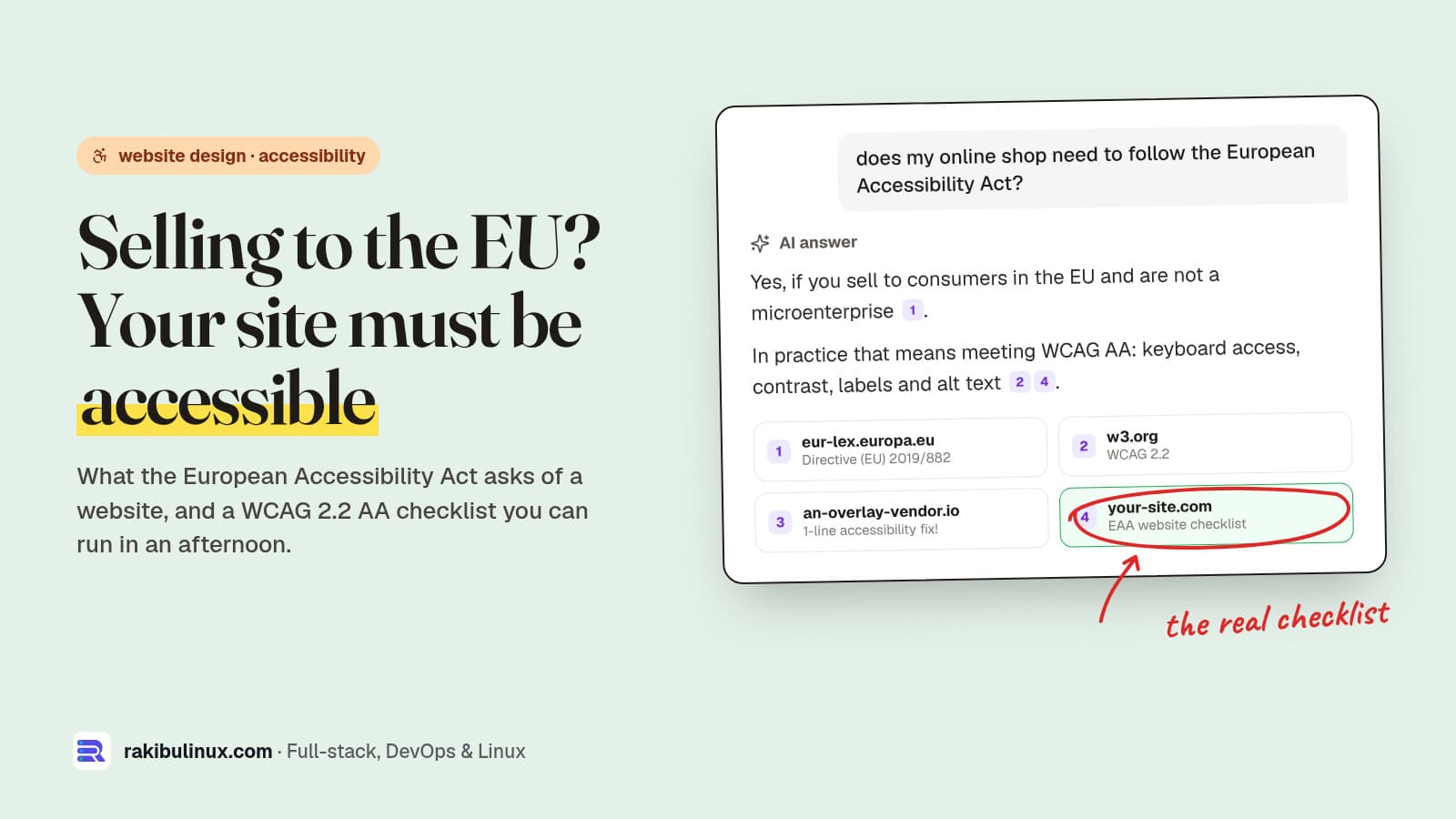
The European Accessibility Act requires most online shops and digital services selling to EU consumers to be accessible, in practice to WCAG 2.1/2.2 level AA.
The European Accessibility Act (EAA) has applied since June 28, 2025. It doesn't matter where your company is based: if you sell to consumers in the EU through a website or app, it covers you unless you are a microenterprise. Most of the sites I'm asked to redesign fail the same handful of checks, and almost none of them need a rebuild to pass. This post explains what the law asks of a website in plain language and gives you the checklist I use, so you can test your own site this afternoon.
Key takeaways
- Who: businesses offering covered services to EU consumers, including e-commerce, banking, e-books, passenger transport booking and electronic communications. Location of the company doesn't matter.
- Exempt: microenterprises providing services, meaning fewer than 10 staff and annual turnover or balance sheet of €2 million or less.
- The standard: the EAA points to EN 301 549, which uses WCAG 2.1 AA for web content. Building to WCAG 2.2 AA covers it and is where the standard is heading.
- Enforcement: each EU country sets its own authority and penalties, including fines and orders to fix or withdraw a service.
- Overlays don't fix it: a one-line accessibility widget doesn't make inaccessible HTML accessible. Fix the template.
Does the European Accessibility Act apply to my website?
Ask three questions.
- Do you sell to consumers in the EU? B2B-only sites are mostly outside the scope. A shop that ships to Germany or France is inside it, even if the company is in the UK, the US or Bangladesh.
- Is it a covered service? E-commerce (any website or app where consumers buy products or services), consumer banking, e-books and e-readers, passenger transport services (booking, tickets, travel information) and electronic communications. A brochure website for a plumber is not e-commerce; an online booking and payment flow is.
- Are you a microenterprise? Service providers with fewer than 10 employees and annual turnover or balance sheet of no more than €2 million are exempt from the service requirements.
If you answered yes, yes, no, the law applies. Even if you're exempt, the checklist below is worth doing: accessible sites convert better, rank better and work better on phones, because most fixes are the same things that make a site clear for everyone.
What the law actually requires of a website
The directive (Directive (EU) 2019/882) describes outcomes: the service must be perceivable, operable, understandable and robust, which are the four principles of WCAG. The harmonised standard EN 301 549 turns that into testable criteria, and for web pages those are the WCAG 2.1 level A and AA success criteria.
You also need to publish information on how your service meets the requirements, usually as an accessibility statement page, and keep it up to date. National authorities in each member state handle complaints and checks. Some narrow transition rules run until 2030, but they don't cover a normal online shop's website, so don't plan around them.
The EAA website checklist (WCAG 2.2 AA)
Run these in order. The first five catch most real problems.
1. Use the site with the keyboard only
Unplug the mouse. Press Tab from the top of the page through the menu, a product, the cart and checkout. You must be able to reach and use every link, button, menu and form field, see where the focus is at all times, and never get stuck inside a widget. Custom dropdowns, date pickers, cookie banners and chat bubbles are where this usually fails.
2. Visible focus that isn't hidden
Never remove outlines without a replacement. A 2-3 px ring in a contrasting colour works on any design. WCAG 2.2 adds that the focused element must not be fully hidden behind a sticky header, cookie bar or chat widget (2.4.11 Focus Not Obscured). On this site, every button uses a focus-visible ring and the first Tab stop is a "Skip to content" link, which takes ten minutes to add to any template.
3. Colour contrast
Body text needs a contrast ratio of at least 4.5:1 against its background; large text (about 24 px, or 18.5 px bold) and UI parts like input borders and icons need 3:1. Light grey text on white and white text on brand-coloured buttons are the usual failures. Check with the contrast tool in Chrome DevTools (inspect the text, click the colour swatch). Don't use colour alone to show errors or required fields; add text or an icon.
4. Images, icons and alt text
Every meaningful image needs alt text that says what it shows or does: "Red leather tote bag, front view", not "IMG_4021" or "image". Decorative images get an empty alt="". Icon-only buttons (cart, search, close, menu) need an accessible name with aria-label or visually hidden text. The same alt text also helps your image SEO.
5. Forms and checkout
- Every field has a visible
<label>; placeholders are not labels. - Errors say what's wrong and how to fix it, next to the field, and are announced to screen readers.
- Use the right
autocompletevalues (email,postal-code,cc-number) so browsers can fill them. - Don't ask for the same information twice in one process (3.3.7 Redundant Entry, new in 2.2). Offer "billing same as shipping".
- Login must not depend on solving a puzzle or remembering something; allow paste into password fields and support password managers (3.3.8 Accessible Authentication).
6. Structure that screen readers can navigate
One <h1> per page, headings in order, real <button> and <a> elements instead of clickable <div>s, <nav>, <main> and <footer> landmarks, and lang="en" (or your language) on the <html> tag. This is also exactly the structure search engines read, which is why accessibility work and SEO work overlap so much.
7. Touch targets, zoom and motion
- Targets at least 24×24 CSS pixels, or spaced so they don't overlap (2.5.8, new in 2.2).
- Anything that needs dragging, like a slider or a sortable list, also works with simple clicks (2.5.7).
- The page works at 200% zoom and at 320 px wide without horizontal scrolling.
- Auto-playing carousels and videos can be paused, and animation respects
prefers-reduced-motion.
8. Video, audio and documents
Videos need captions; audio needs a transcript. PDFs you expect customers to read (terms, size guides, manuals) should be tagged PDFs, or better, normal web pages.
9. Consistent help and an accessibility statement
If you offer help (phone, chat, contact form), put it in the same place on every page (3.2.6 Consistent Help). Then publish an accessibility statement: the standard you target, known problems and when you'll fix them, and how to contact you if something doesn't work.
How to test without buying a tool
- Automated scan: Lighthouse in Chrome DevTools or the free axe DevTools extension. They catch the mechanical issues (contrast, missing labels and alt text) in a few minutes per template.
- Keyboard pass: the Tab test above, on home, category, product, cart, checkout and contact.
- Screen reader pass: NVDA on Windows or VoiceOver on Mac and iPhone. Listen to one product page and one checkout.
- Zoom and phone: 200% browser zoom, then a real phone.
Test templates, not pages: on most sites, fixing the header, footer, product card and checkout template fixes thousands of URLs at once.
Why accessibility overlays aren't the answer
Overlay widgets promise compliance with one line of JavaScript. They can't add missing labels correctly, fix keyboard traps in your checkout or rewrite meaningless alt text, and many screen reader users actively block them because they interfere with their own tools. Regulators and courts look at whether people can use your site, not at whether a widget is installed. Spend the money on fixing the templates once.
If you're also planning a redesign, build accessibility in from the start; it costs far less than retrofitting. My guide to redesigning a website without losing SEO and the landing page conversion checklist both pair well with this one, and fast pages help too (fixing a slow LCP).
Frequently asked questions
Does the European Accessibility Act apply to non-EU companies?
Yes, if they provide covered services, such as e-commerce, to consumers in the EU. What matters is where your customers are, not where your company is registered.
Is WCAG 2.1 or WCAG 2.2 required for the EAA?
The current harmonised standard, EN 301 549, references WCAG 2.1 level AA for web content. WCAG 2.2 AA includes everything in 2.1 plus six more criteria at A and AA, so building to 2.2 AA meets today's requirement and the next update.
Are small businesses exempt from the EAA?
Microenterprises providing services are exempt: fewer than 10 employees and an annual turnover or balance sheet total of no more than €2 million. Small and medium businesses above that size are covered.
What happens if my website is not accessible?
Each EU country enforces the EAA through its own authority. Consequences range from orders to fix the service to fines and, in serious cases, stopping the service in that market. Penalties differ by country, so check your main markets.
How long does it take to make a website accessible?
For a typical shop or business site built on reusable templates, a focused audit and fix usually takes days to a few weeks, not months. Custom widgets in checkout and third-party plugins take the most time.
Need an accessible redesign or an audit?
I audit sites against WCAG 2.2 AA, fix the templates and components (not a widget on top), and write the accessibility statement. See my website design service, or send me your URL for a quick review of the biggest gaps.

Written by
MD Rakibul Islam Rakib
Full-stack developer, DevOps engineer and Linux system administrator with 5+ years of production experience. I deploy, harden and fix servers and web apps for clients worldwide, and everything in this article runs on real servers I manage, including this site.
- European Accessibility Act
- EAA website compliance
- WCAG 2.2 AA checklist
- website accessibility
- accessible web design
- EN 301 549
- ecommerce accessibility