Ubuntu 24.04 Server Hardening Checklist for 2026
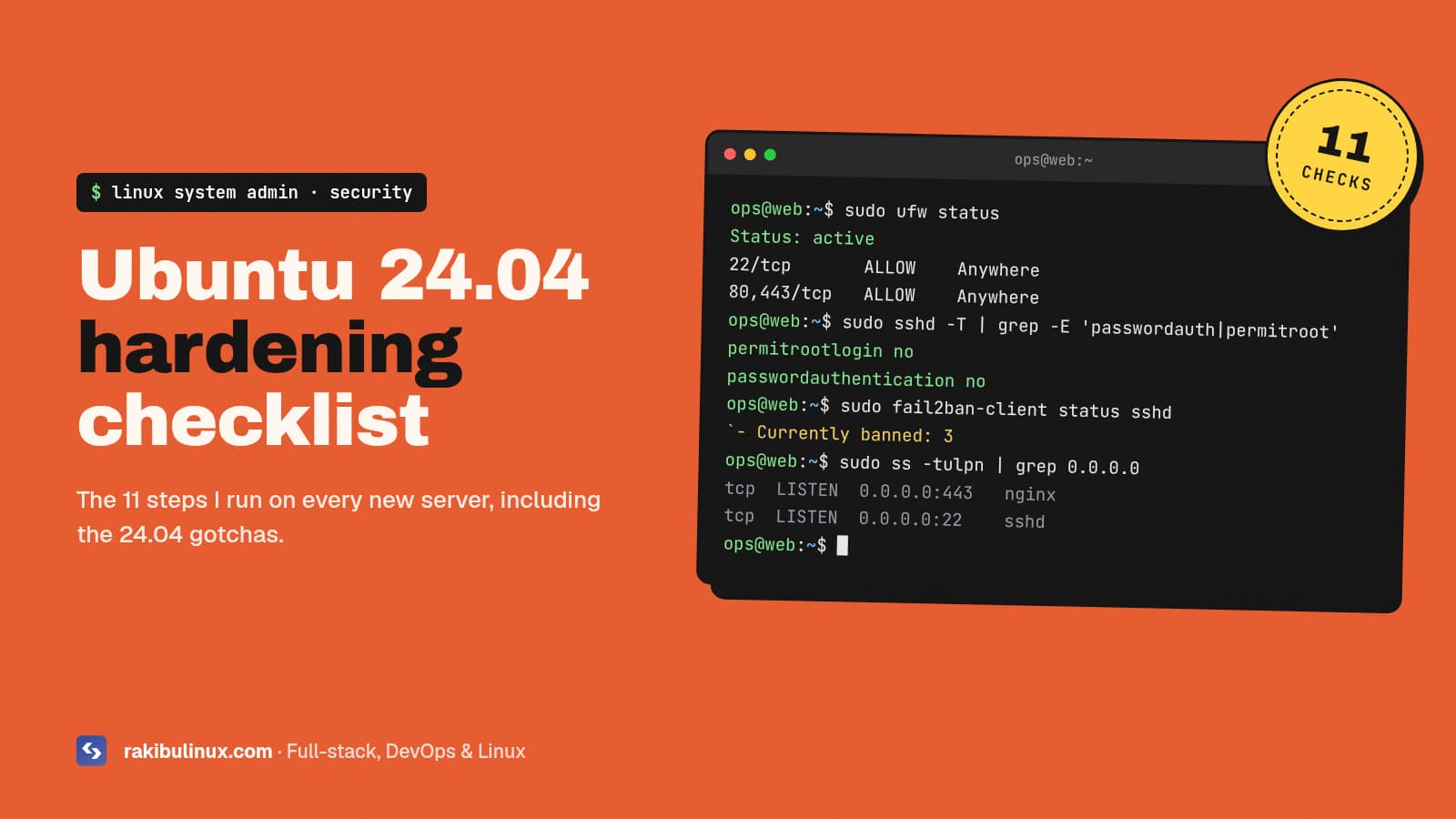
Harden Ubuntu 24.04 with automatic security updates, SSH keys only, no root login, a UFW firewall, fail2ban, and offsite backups you have actually tested.
A fresh VPS gets its first automated login attempts within minutes of going online. Bots scan the whole internet for open SSH ports, default passwords and outdated software all day long. The good news is that a small set of well-chosen settings stops almost all of it. This is the checklist I apply to every Ubuntu 24.04 LTS server I set up for clients, in the order I apply it, with the commands and the gotchas that are specific to 24.04.
Key takeaways
- Patch automatically. Most real-world compromises use known, already-fixed vulnerabilities.
- SSH keys only, no root login. On 24.04, put your settings in
/etc/ssh/sshd_config.d/and watch out for the cloud-init file that can re-enable passwords. - Default-deny firewall with UFW, and remember that Docker-published ports bypass UFW.
- fail2ban slows down brute-force attempts and keeps logs clean.
- Backups you have restored at least once are part of security, not a separate topic.
1. Update everything and enable automatic security updates
sudo apt update && sudo apt full-upgrade -y
sudo apt install -y unattended-upgrades
sudo dpkg-reconfigure -plow unattended-upgrades
Ubuntu installs security updates automatically once this is enabled. Kernel updates still need a reboot. Either schedule one in /etc/apt/apt.conf.d/50unattended-upgrades:
Unattended-Upgrade::Automatic-Reboot "true";
Unattended-Upgrade::Automatic-Reboot-Time "04:00";
or enable Livepatch through Ubuntu Pro (free for personal use on a small number of machines) to apply many kernel fixes without rebooting.
2. Create a non-root user with sudo
sudo adduser deploy
sudo usermod -aG sudo deploy
# copy your public key
sudo mkdir -p /home/deploy/.ssh
sudo cp ~/.ssh/authorized_keys /home/deploy/.ssh/
sudo chown -R deploy:deploy /home/deploy/.ssh
sudo chmod 700 /home/deploy/.ssh && sudo chmod 600 /home/deploy/.ssh/authorized_keys
Open a second terminal and confirm you can log in as the new user and run sudo before you change any SSH settings. Keep your current session open until everything works.
3. Harden SSH (the 24.04 way)
Ubuntu 24.04 reads drop-in files from /etc/ssh/sshd_config.d/. Two details trip people up:
- The first value wins. OpenSSH uses the first value it reads for each setting, and drop-ins are read in alphabetical order before the main file.
- Cloud images often ship
50-cloud-init.confwithPasswordAuthentication yes. If your file sorts after it, your setting is ignored.
So name your file so it sorts first:
# /etc/ssh/sshd_config.d/00-hardening.conf
PermitRootLogin no
PasswordAuthentication no
KbdInteractiveAuthentication no
PubkeyAuthentication yes
AllowUsers deploy
MaxAuthTries 3
LoginGraceTime 30
X11Forwarding no
sudo sshd -t                      # syntax check, no output means OK
sudo sshd -T | grep -E 'passwordauthentication|permitrootlogin'
sudo systemctl restart ssh
The sshd -T line prints the effective configuration, so you can see that passwords are really off. Another 24.04 detail: SSH is socket-activated. If you change the port, the listening port comes from ssh.socket, so run sudo systemctl daemon-reload && sudo systemctl restart ssh.socket afterwards. Changing the port reduces log noise but is not real security on its own; keys-only login is what matters.
4. Turn on the firewall (UFW)
sudo ufw default deny incoming
sudo ufw default allow outgoing
sudo ufw allow OpenSSH
sudo ufw allow 80,443/tcp
sudo ufw enable
sudo ufw status verbose
Allow SSH before enabling UFW, or you will lock yourself out. If you have a static office IP, restrict SSH to it: sudo ufw allow from 203.0.113.10 to any port 22 proto tcp.
Docker warning: ports published with -p 5432:5432 are opened through iptables rules that UFW does not control. Bind internal services to localhost instead (-p 127.0.0.1:5432:5432) and let Nginx be the only public entry point. I see exposed databases caused by this on client servers more often than any other issue.
5. Install fail2ban
sudo apt install -y fail2ban
sudo tee /etc/fail2ban/jail.local >/dev/null <<'EOF'
[DEFAULT]
bantime  = 1h
findtime = 10m
maxretry = 5
backend  = systemd

[sshd]
enabled = true
EOF
sudo systemctl enable --now fail2ban
sudo fail2ban-client status sshd
With password login disabled, attackers cannot guess their way in anyway, but fail2ban cuts the noise and protects other services you add later, such as Nginx basic-auth or mail.
6. Check what is listening
sudo ss -tulpn
Every line should be something you expect. Databases, Redis, app servers on ports like 3000 or 5000, and admin panels should listen on 127.0.0.1, not 0.0.0.0. Remove packages you do not use with sudo apt purge.
7. Secure the web layer
- Use HTTPS everywhere with Let's Encrypt (
certbot --nginx) and redirect HTTP to HTTPS. - Hide version numbers in Nginx with
server_tokens off;. - Add security headers:
Strict-Transport-Security,X-Content-Type-Options: nosniff,Referrer-Policyand a sensibleContent-Security-Policy. - Never expose
.env,.gitor backup files from the web root.
Running Next.js or Node.js behind Nginx? My guide to deploying Next.js 16 on a VPS shows the full reverse proxy config.
8. Kernel and system settings
Ubuntu's defaults are already reasonable, and AppArmor is enabled out of the box. A few extra network settings are worth adding in /etc/sysctl.d/99-hardening.conf:
net.ipv4.conf.all.rp_filter = 1
net.ipv4.conf.all.accept_redirects = 0
net.ipv6.conf.all.accept_redirects = 0
net.ipv4.conf.all.send_redirects = 0
net.ipv4.conf.all.accept_source_route = 0
net.ipv4.tcp_syncookies = 1
sudo sysctl --system
9. Logs, monitoring and alerts
- Keep
journaldlogs persistent and reviewjournalctl -u sshonce in a while. - Set up uptime monitoring and disk-space alerts; a full disk causes more outages than hackers do.
- Run
sudo apt install lynis && sudo lynis audit systemfor a free security score and a list of suggestions.
10. Backups you have actually tested
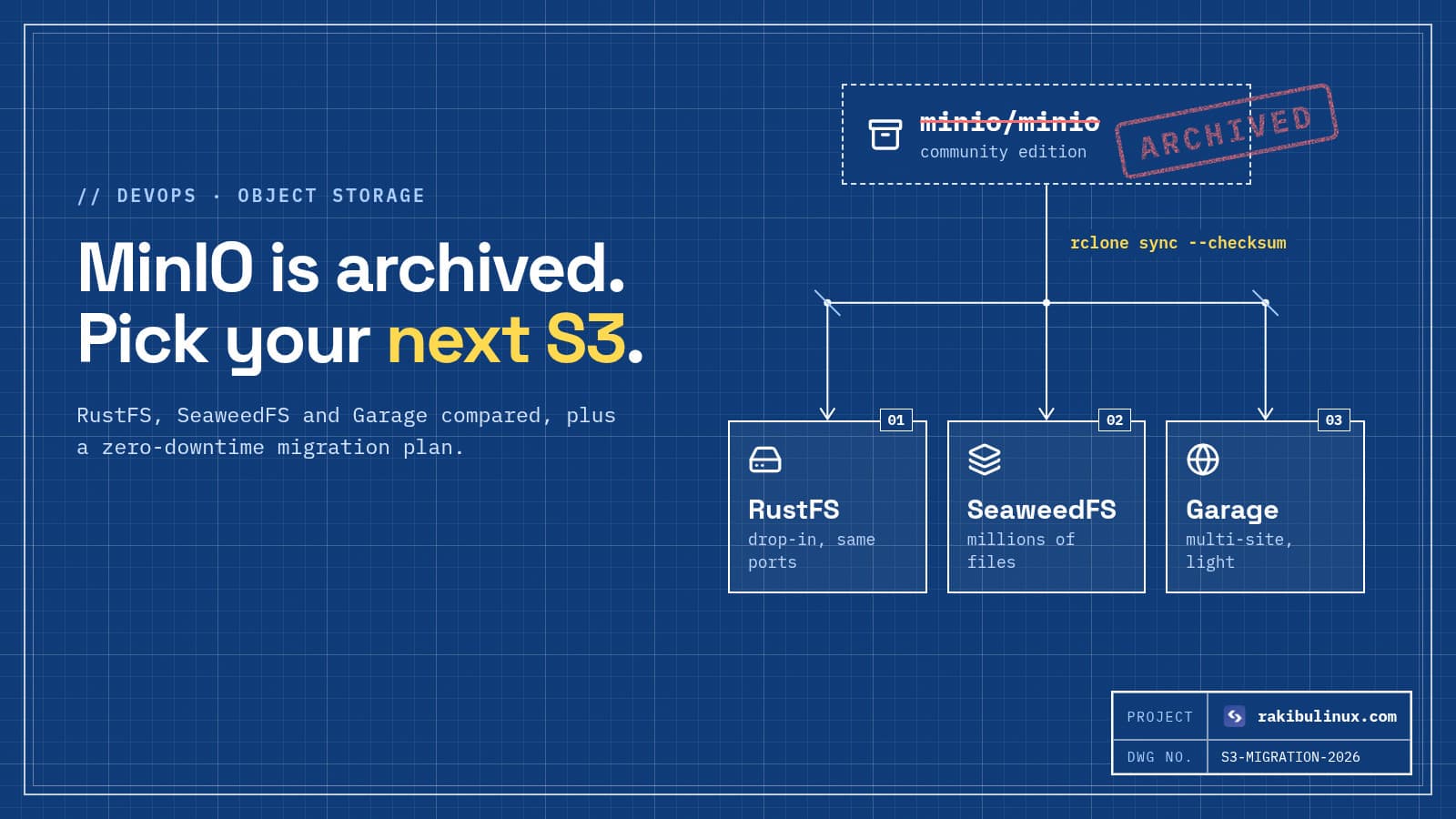
Security is also about recovery. Back up databases and important files every day to a different provider or region, keep several versions, and do a test restore at least once per quarter. My complete guide to Linux backups covers scripts for files and databases, and if you store backups in self-hosted S3, read my notes on MinIO alternatives.
The quick checklist
- Full upgrade and unattended security updates
- Non-root sudo user with SSH key
- SSH: keys only, no root, drop-in sorted first, verified with
sshd -T - UFW default deny, only 22, 80, 443 open
- Docker ports bound to 127.0.0.1
- fail2ban with the sshd jail
ss -tulpnshows only expected services- HTTPS, security headers,
server_tokens off - sysctl network hardening
- Monitoring, alerts and a Lynis audit
- Offsite backups with a tested restore
Frequently asked questions
Is Ubuntu 24.04 secure by default?
It is a solid base: AppArmor is enabled, packages are signed and security updates are fast. But a fresh server still allows password SSH on many cloud images, has no firewall rules and does not reboot for kernel updates. The steps above close those gaps.
Should I change the SSH port?
It reduces log noise from bots but does not stop a targeted attacker. Disabling passwords and root login matters far more. If you change it, update UFW and restart ssh.socket on 24.04.
Do I need fail2ban if passwords are disabled?
It is not strictly required for SSH once passwords are off, but it is cheap, reduces noise, and protects other services you may expose later.
How often should I audit a server?
Review updates and alerts weekly (automatically if possible), and do a full audit with Lynis and a manual check of open ports every quarter or after any big change.
Can you harden my existing server without downtime?
Usually yes. Most steps apply live. SSH and firewall changes are done carefully with a second session open, and a kernel reboot is scheduled in a quiet window.
Get your server hardened
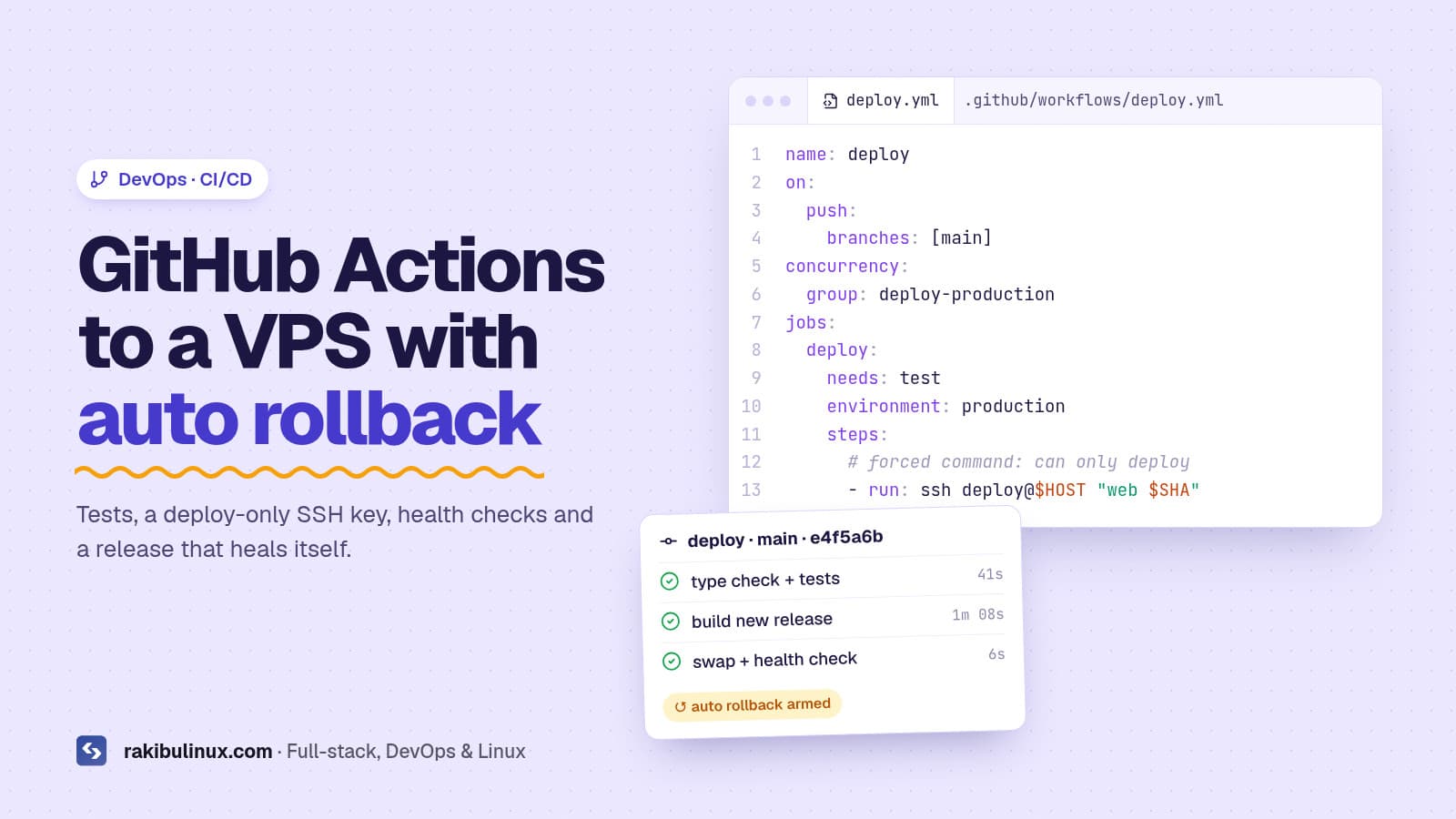
I secure and maintain Ubuntu and Debian servers for businesses: hardening, firewalls, backups, monitoring, and a short written report of everything I changed. See my Linux system admin services or contact me for a security check of your server. Shipping code to that server next? Read GitHub Actions CI/CD with automatic rollback.
- Ubuntu 24.04
- server hardening
- Linux security
- SSH hardening
- UFW
- fail2ban
- Linux system admin