Self-Host an LLM with Ollama on an Ubuntu VPS (2026)
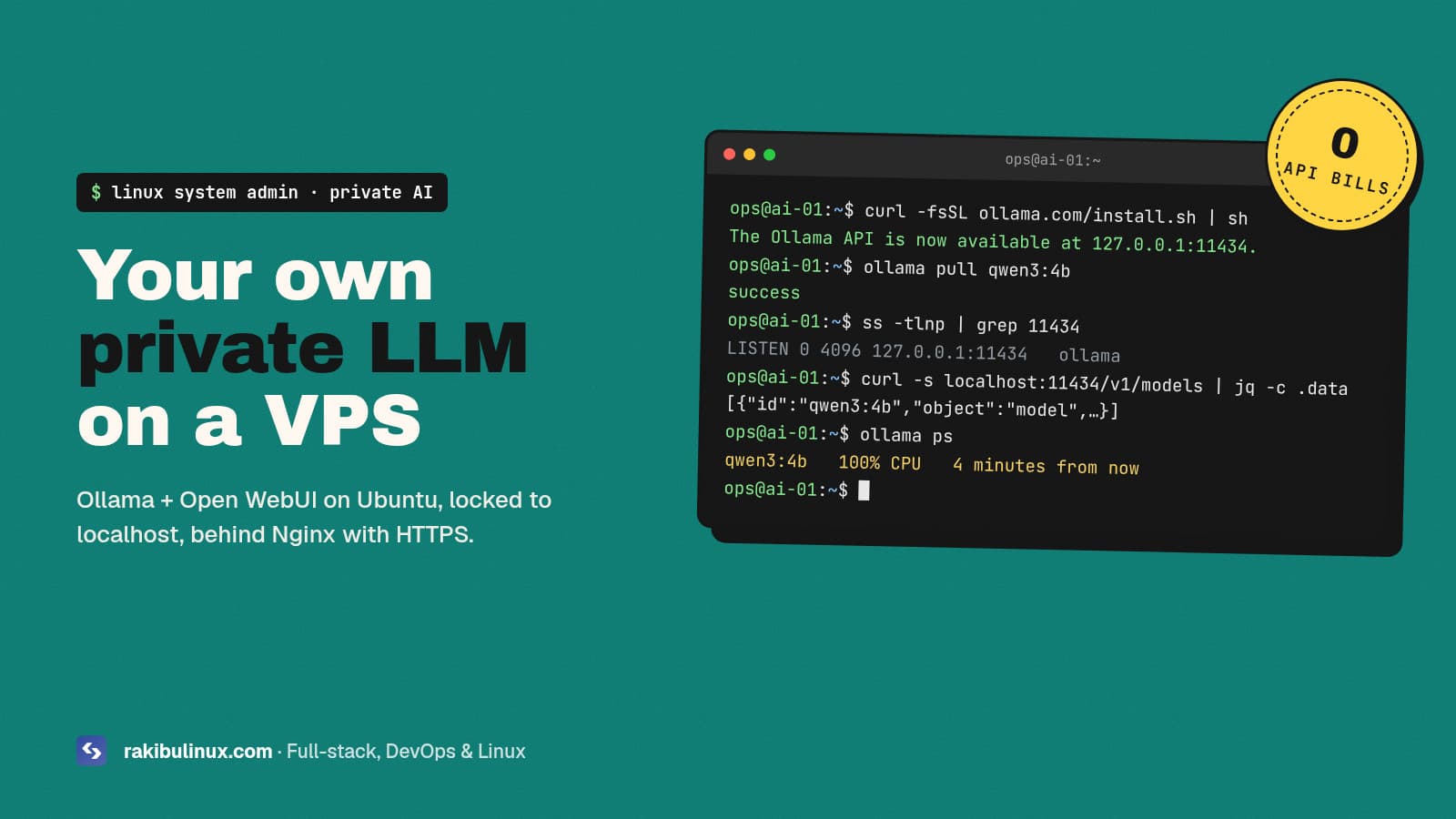
To self-host an LLM on an Ubuntu VPS, install Ollama, keep it on 127.0.0.1, pull a model that fits your RAM and put Open WebUI behind Nginx with HTTPS.
A private model is useful when you can't send customer data to an API, when you want a fixed monthly cost, or when you need an internal chat or summariser for a small team. You don't need a GPU to start. A CPU VPS with 8 to 16 GB of RAM runs a small modern model well enough for summaries, classification, drafting and internal tools. This guide targets Ubuntu 24.04 and reuses the Nginx, HTTPS and firewall setup I run on my web servers, so the AI box is as locked down as everything else.
Key takeaways
- Ollama installs with one command, runs as a systemd service and serves an OpenAI-compatible API on
127.0.0.1:11434. - Never expose port 11434 to the internet. Ollama's API has no authentication. Put Nginx with auth in front, or use it only from the same server.
- Pick the model by RAM: 3-4B models for 8 GB CPU servers, 8B for 16 GB, and 20B+ only with a GPU or plenty of memory.
- Open WebUI gives your team a ChatGPT-style interface with user accounts on top of Ollama.
- CPU inference is slow for long answers. Use it for short, private tasks, or rent a GPU when you need speed.
Which server do you need?
- 8 GB RAM, 4 vCPU: 3-4B models such as
qwen3:4b,gemma3:4borllama3.2:3b. Fine for one or two users, summaries and short answers. - 16 GB RAM, 8 vCPU: 7-9B models such as
qwen3:8b. Better reasoning, slower answers on CPU. - GPU server: 20B and larger models, for example
gpt-oss:20b, or several users at once. For many concurrent users, look at vLLM instead of Ollama.
Model files are several gigabytes each, so leave 30 GB or more of free disk. Model names and sizes change often, so check the Ollama library for current options.
Step 1: Prepare the server
Start from a hardened Ubuntu 24.04 server: SSH keys only, UFW allowing only 22, 80 and 443, automatic security updates. My Ubuntu 24.04 hardening checklist covers it step by step. Then install the basics:
sudo apt update && sudo apt install -y nginx curl jq
Step 2: Install Ollama
curl -fsSL https://ollama.com/install.sh | sh
systemctl status ollama --no-pager
The script creates an ollama system user and a systemd service. By default it listens on 127.0.0.1:11434 only, which is what you want. Models are stored in /usr/share/ollama/.ollama/models. If your root disk is small, set OLLAMA_MODELS to a path on a bigger volume (the ollama user needs read and write access).
Step 3: Pull a model and test it
ollama pull qwen3:4b
ollama run qwen3:4b "Summarise what UFW does in one sentence."

# the OpenAI-compatible API
curl -s http://127.0.0.1:11434/v1/chat/completions \
  -H "Content-Type: application/json" \
  -d '{"model":"qwen3:4b","messages":[{"role":"user","content":"Say hi"}]}' | jq -r '.choices[0].message.content'
Because the API follows OpenAI's format, most SDKs and tools work by changing the base URL to http://127.0.0.1:11434/v1. The API key field is required by some clients but ignored by Ollama.
Step 4: Tune the service
Settings go into a systemd override, not into the unit file (updates would overwrite it):
sudo systemctl edit ollama.service
[Service]
Environment="OLLAMA_KEEP_ALIVE=30m"
Environment="OLLAMA_CONTEXT_LENGTH=8192"
Environment="OLLAMA_NUM_PARALLEL=1"
sudo systemctl daemon-reload && sudo systemctl restart ollama
OLLAMA_KEEP_ALIVE: how long a model stays in memory after a request. The default is 5 minutes; a longer value avoids slow cold starts.OLLAMA_CONTEXT_LENGTH: the context window. Bigger windows use more RAM.OLLAMA_NUM_PARALLEL: parallel requests per model. On a CPU server, keep it low.
Leave OLLAMA_HOST alone. Setting it to 0.0.0.0 exposes an unauthenticated API to anyone who can reach the port.
Step 5: Add Open WebUI for your team
Open WebUI is a self-hosted chat interface with user accounts, chat history and document uploads. Run it with Docker on the host network so it can reach Ollama on localhost:
docker run -d --network=host \
  -e OLLAMA_BASE_URL=http://127.0.0.1:11434 \
  -e WEBUI_SECRET_KEY="$(openssl rand -hex 32)" \
  -v open-webui:/app/backend/data \
  --name open-webui --restart always \
  ghcr.io/open-webui/open-webui:main
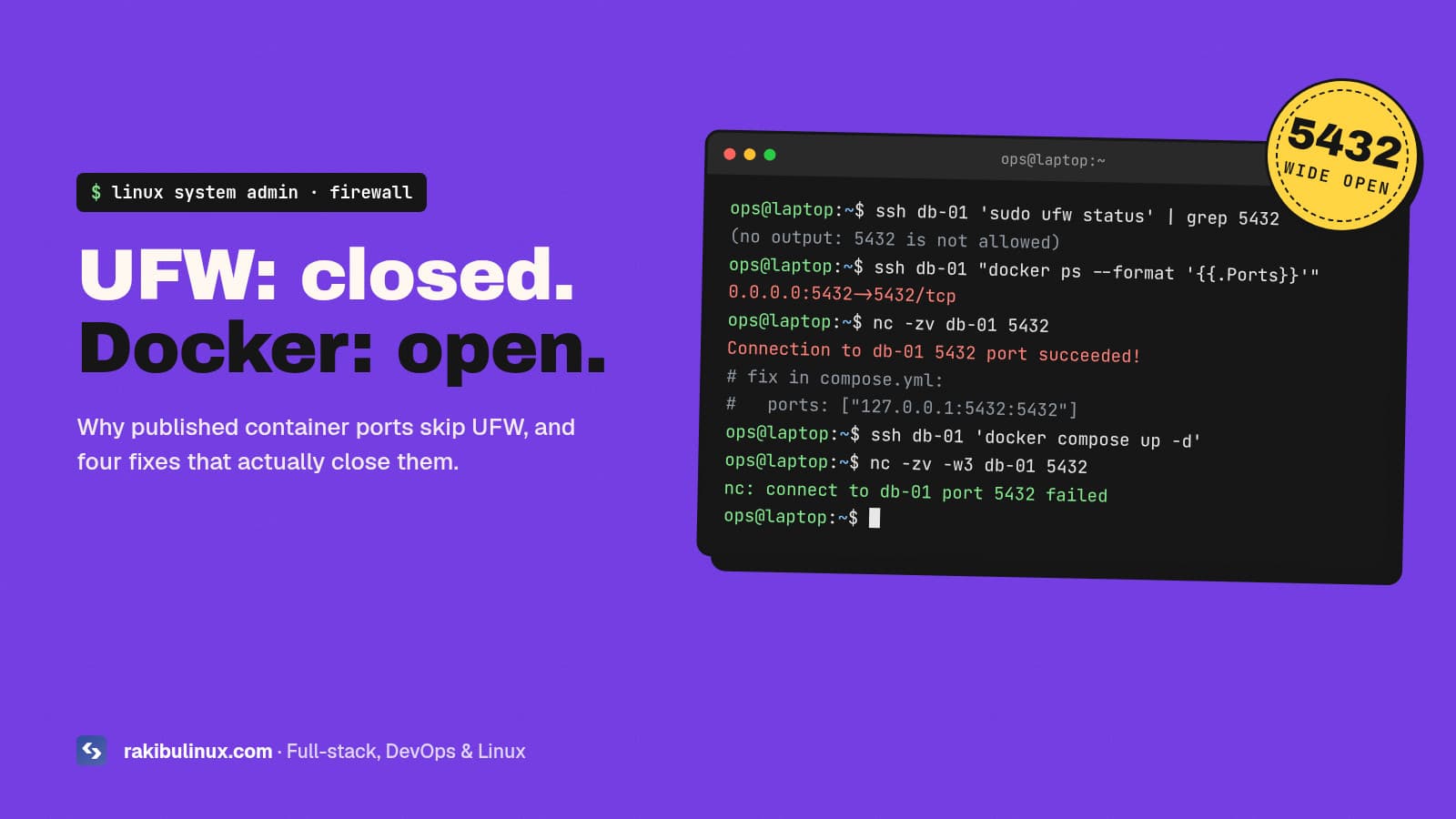
It listens on port 8080. With host networking, UFW still filters it, so 8080 stays closed to the internet. Avoid -p 8080:8080 here: published Docker ports skip UFW entirely. I explain that trap in why Docker bypasses UFW and how to fix it. The first account you create becomes the admin, so create it straight away.
Step 6: Put Nginx and HTTPS in front
server {
    server_name ai.example.com;
    client_max_body_size 50m;            # document uploads

    location / {
        proxy_pass http://127.0.0.1:8080;
        proxy_http_version 1.1;
        proxy_set_header Upgrade $http_upgrade;     # websockets
        proxy_set_header Connection "upgrade";
        proxy_set_header Host $host;
        proxy_set_header X-Forwarded-Proto $scheme;
        proxy_read_timeout 300s;         # slow CPU answers
    }
}
sudo nginx -t && sudo systemctl reload nginx
sudo apt install -y certbot python3-certbot-nginx
sudo certbot --nginx -d ai.example.com
Turn off open sign-up in Open WebUI's admin settings once your team has accounts, or put the whole site behind your VPN or SSO.
Step 7: Use it from your own apps
For an app on the same server, call http://127.0.0.1:11434/v1 directly. For apps on other servers, don't open Ollama. Either expose a small authenticated endpoint in your own API, or connect the servers over a private network such as WireGuard or Tailscale. If you want AI agents to use internal tools as well as the model, an MCP server is the standard way to plug them in.
Keeping it running
- Update Ollama by re-running the install script; update Open WebUI by pulling the new image and recreating the container.
- Watch memory with
ollama psandfree -h. If the kernel's OOM killer stops Ollama, use a smaller model or a shorter context. - Back up the
open-webuiDocker volume. It holds users and chat history. - Logs:
journalctl -u ollama -fanddocker logs -f open-webui.
Frequently asked questions
Can I run an LLM on a VPS without a GPU?
Yes. Small models (3-8B parameters, quantised) run on CPU with 8-16 GB RAM. Answers come more slowly than from cloud APIs, but it works well for short, private tasks and internal tools.
Is Ollama safe to expose to the internet?
Not directly. Its API has no authentication, so anyone who can reach port 11434 can use your server and your models. Keep it on 127.0.0.1 and put an authenticated proxy or private network in front.
Ollama or vLLM?
Ollama is simpler and great for one server and a few users. vLLM is built for high-throughput serving on GPUs with many concurrent users. Start with Ollama and switch when concurrency becomes the bottleneck.
Is self-hosting cheaper than OpenAI or Claude APIs?
For light use, APIs are usually cheaper and much smarter. Self-hosting wins when data can't leave your servers, when usage is heavy and predictable, or when you need a fixed monthly cost.
Which model should I start with?
A current 4B model like qwen3:4b or gemma3:4b on an 8 GB server. Test it on your real task, then move up a size only if the quality isn't good enough.
Want a private AI server set up for your team?
I set up and secure self-hosted AI on Linux: Ollama or vLLM, Open WebUI, SSO, backups and monitoring. See my Linux system admin services or tell me what you want to run.
- self-host LLM
- Ollama
- Ubuntu VPS
- Open WebUI
- private AI
- Nginx
- Linux system admin