Nginx 413 Request Entity Too Large: Every Layer Fixed
 MD Rakibul Islam RakibFull-stack developer, DevOps & Linux engineer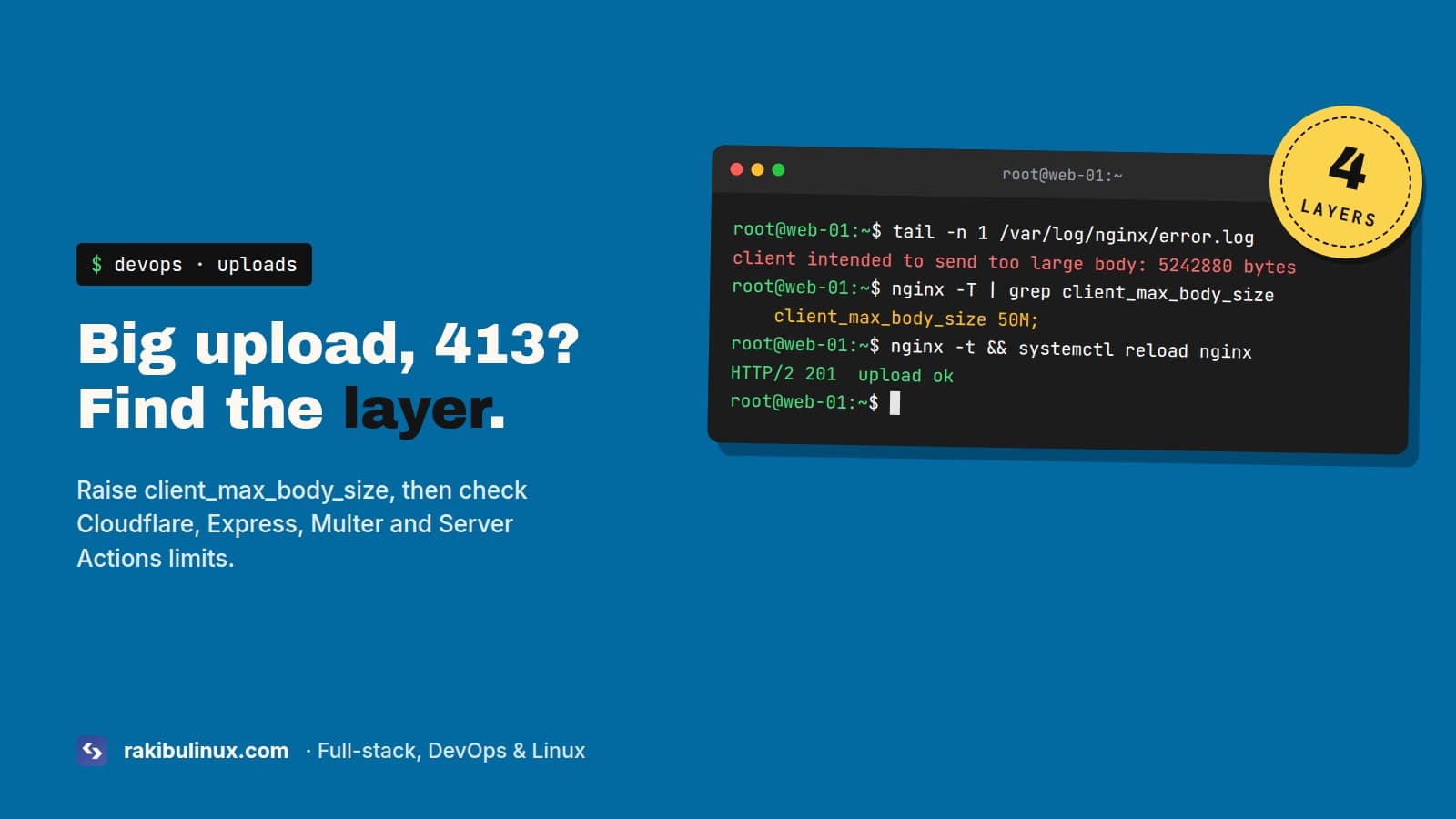
Nginx returns 413 because client_max_body_size defaults to 1 MB. Raise it in the server block, reload Nginx, then check Cloudflare's and your app's limits.
The usual report goes like this: "uploads work for small images and fail for anything from a phone camera." A modern phone photo is 3 to 6 MB, and Nginx's default limit is 1 MB, so the very first real user hits it. Raising the Nginx limit fixes most cases. But the 413 can come straight back after the Nginx change, because there are up to four limits stacked on top of each other, and each one returns the same status code. The trick is to find out which layer actually said no.
Key takeaways
- Nginx's
client_max_body_sizedefaults to1m. Set it in theserverblock of the site that receives uploads. - Always run
sudo nginx -tbefore reloading, and check that no more specificlocationblock sets a smaller value. - Cloudflare's free and Pro plans cap request bodies at 100 MB. Above that, upload straight to storage.
- Express and NestJS have their own JSON limit of 100 KB, and Multer has its own file size limit.
- In the browser, a 413 from Nginx often shows up as a CORS error. Check the Network tab, not the console.
Step 1: Find which layer returned 413
Open DevTools, go to the Network tab, retry the upload and click the failed request. Look at the response:
- An HTML page that says
413 Request Entity Too Largewithnginxat the bottom, and aserver: nginxheader: Nginx. Go to step 2. - A Cloudflare-branded error page or a
server: cloudflareheader with no request in your Nginx log: Cloudflare. See step 3. - JSON like
{"message":"request entity too large"}orPayloadTooLargeErrorin your app logs: your app. See step 4.
You can also test without a browser:
head -c 5M /dev/urandom > /tmp/5mb.bin
curl -s -o /dev/null -w "%{http_code}\n" -F "file=@/tmp/5mb.bin" https://example.com/api/upload
Compare sudo tail -f /var/log/nginx/error.log while you send it. Nginx logs client intended to send too large body: 5242880 bytes when it's the one refusing.
Step 2: Raise the limit in Nginx
Edit the site's config (/etc/nginx/sites-available/example.com on Ubuntu) and add the directive inside the server block:
server {
    server_name example.com;
    client_max_body_size 50M;

    location / {
        proxy_pass http://127.0.0.1:3000;
    }
}
sudo nginx -t && sudo systemctl reload nginx
A few things trip people up here:
- The most specific block wins. A
client_max_body_size 1m;insidelocation /apioverrides your 50M inserver. Find every setting withsudo nginx -T | grep -n client_max_body_size. Capital-Tprints the full loaded config, including included files. - The right server block. If you have separate blocks for port 80 and 443, the setting must be in the 443 one that actually proxies the request.
- Reload, don't just save. Nginx doesn't see the change until you reload. If
nginx -tfails, the reload doesn't happen and the old config keeps running.
Don't use client_max_body_size 0 (no limit) on a public site. Pick a number a bit above the largest file you expect. If only one endpoint takes big uploads, set the large value in that location and keep the rest small.
Large uploads can also be slow. If they now fail with a 504 after about 60 seconds instead of a 413, raise proxy_read_timeout and client_body_timeout for that location. My Nginx 504 gateway timeout fix covers those settings.
Step 3: Cloudflare's limit
If your domain goes through Cloudflare (orange cloud), the request body limit is 100 MB on Free and Pro, 200 MB on Business, and 500 MB by default on Enterprise. You can't raise it on the lower plans. For bigger files, don't send them through your server at all. Upload directly from the browser to S3 or compatible storage (R2, MinIO, RustFS) with a presigned URL, or use chunked uploads. It also keeps big files out of your app server's memory.
Step 4: Your app's own limits
Express and NestJS
Express's JSON and urlencoded parsers default to 100kb. Sending a base64 image in a JSON body hits that instantly with PayloadTooLargeError: request entity too large:
// Express
app.use(express.json({ limit: "10mb" }));
app.use(express.urlencoded({ extended: true, limit: "10mb" }));

// NestJS (main.ts)
const app = await NestFactory.create<NestExpressApplication>(AppModule);
app.useBodyParser("json", { limit: "10mb" });
Better: don't send files as base64 JSON. Use multipart/form-data. Base64 makes every file a third bigger, and multipart skips the JSON parser entirely.
Multer
If you set limits: { fileSize } in Multer, files above it fail with "File too large", which NestJS turns into a 413 PayloadTooLargeException. Keep that limit and Nginx's in sync, or users get different errors for the same file depending on its size.
Next.js Server Actions
Server Actions accept 1 MB by default. A form that uploads a file through an action fails above that. Raise it in next.config.ts:
const nextConfig = {
  experimental: {
    serverActions: { bodySizeLimit: "10mb" },
  },
};
PHP (WordPress, Laravel)
Raise upload_max_filesize and post_max_size in php.ini (or the pool config), then restart PHP-FPM, not just Nginx.
Why the browser says CORS instead of 413
If your frontend and API are on different domains, the 413 page from Nginx doesn't include your CORS headers, because Nginx answered and your app never saw the request. The browser then reports "blocked by CORS policy" and hides the real status. If you add CORS headers in Nginx, use always so they're also sent on error responses:
add_header Access-Control-Allow-Origin "https://www.example.com" always;
More on this in my CORS error guide.
Test the whole chain after the fix
Don't stop at one successful upload. Send a few sizes on either side of each limit, so you know exactly where the next wall is and that the error users get is the one you expect:
for size in 900K 2M 20M 60M; do
  head -c $size /dev/urandom > /tmp/test.bin
  printf "%5s  " $size
  curl -s -o /dev/null -w "%{http_code}\n" -F "file=@/tmp/test.bin" https://example.com/api/upload
done
With a 50M Nginx limit, you want the first three to succeed and the last one to fail with 413 from Nginx. Then make sure the frontend shows a friendly "file too large" message for that 413 instead of a generic error, and checks the size in the browser before uploading at all.
Frequently asked questions
What is the default client_max_body_size in Nginx?
1 MB. Any request body larger than that gets a 413 response unless you raise it.
Where should I put client_max_body_size?
In the server block of the site that receives uploads, or in a specific location for the upload endpoint. Putting it in http applies it to every site on the server.
I changed client_max_body_size and still get 413. Why?
Nginx wasn't reloaded, a more specific location block has a smaller value, or a different layer (Cloudflare, your app's body parser, Multer, PHP) is returning the 413. Check the response headers and the Nginx error log.
What is the Cloudflare upload size limit?
100 MB per request on the Free and Pro plans, 200 MB on Business. For larger files, upload directly to object storage with presigned URLs.
Uploads still failing?
I fix upload limits across Nginx, Cloudflare and Node.js apps, and set up direct-to-storage uploads for large files. Book my emergency Linux server fix, get a properly configured VPS with Nginx and SSL, or contact me with the response headers from the failed request.

Written by
MD Rakibul Islam Rakib
Full-stack developer, DevOps engineer and Linux system administrator with 5+ years of production experience. I deploy, harden and fix servers and web apps for clients worldwide, and everything in this article runs on real servers I manage, including this site.
- nginx 413
- client_max_body_size
- request entity too large
- cloudflare upload limit
- express payload too large