Blog
Notes on building and running web apps
Practical write-ups on web development, DevOps and Linux administration, from real projects.
Bash Scripting for DevOps: 8 Scripts I Use on Servers
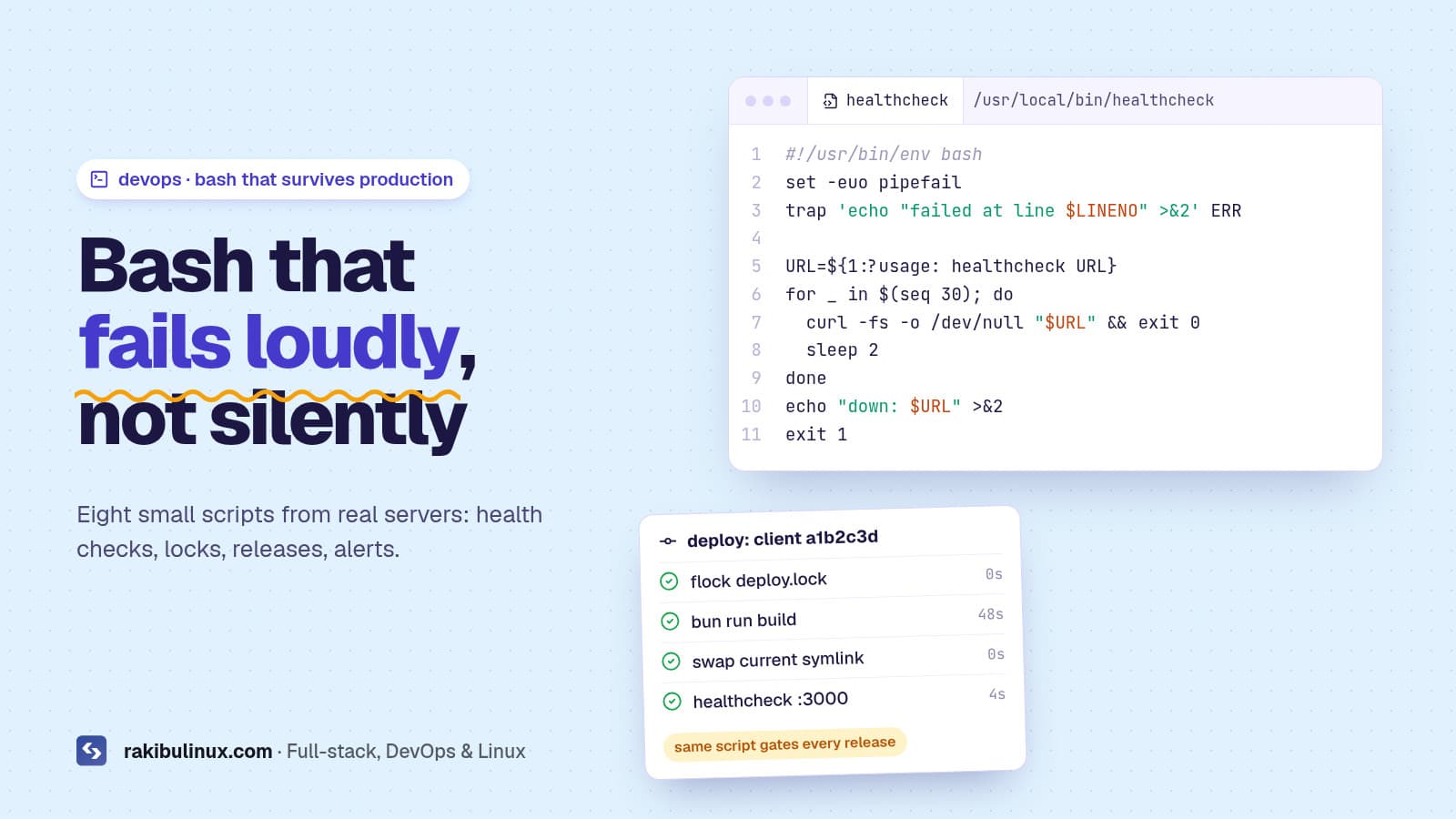
Bash scripting for DevOps means small, strict scripts that automate deploys, checks and alerts. Start each with set -euo pipefail and lint it with shellcheck. When I first wrote about shell scripting here, I showed "Hello, World" and a loop that counts to five. That's how everyone learns, but it isn't what Bash is used for on a real server. This rewrite shows the scripts I actually run in production, including pieces of the deploy script that ships this website on every push. Each one is short, does one job, and fails loudly instead of silently. Key takeaways Use strict mode: set -euo pipefail stops a script at the first error, unset variable or failed pipe. Quote every variable ( "$file" , not $file ), or file names with spaces will break things. Lock jobs that must not overlap with flock , and swap releases atomically with ln -sfn + mv -T . Run shellcheck on every script; it catches most Bash bugs before they reach a server. Switch to Python when a script needs JSON parsing, complex data or grows past a couple of hundred lines. Why Bash still matters in DevOps Every Linux server already has Bash. There's nothing to install, and it's the native language of the tools you glue together: git , curl , systemctl , pg_dump , rsync . GitHub Actions steps, Dockerfile RUN lines, cron jobs and systemd units all end up running shell commands. Knowing how to write a safe script is a core DevOps skill, even on teams that use Terraform and Kubernetes. 1. A safe script template Every script I write starts like this: #!/usr/bin/env bash set -euo pipefail trap 'echo "[$(date +%T)] failed at line $LINENO (exit $?)" >&2' ERR log() { echo "[$(date +%T)] $*"; } die() { echo "error: $*" >&2; exit 1; } [[ $EUID -eq 0 ]] || die "run as root" TARGET=${1:?usage: $0 <target>} log "starting for $TARGET" -e exits when a command fails. -u treats unset variables as errors, so a typo in $BACKUP_DRI doesn't become rm -rf / . -o pipefail makes cmd | gzip fail when cmd fails. The ERR trap prints the line that failed, which turns a mystery into a one-minute fix. ${1:?message} stops with a usage message when an argument is missing. With strict mode, a failed pg_dump inside a pipe stops the script at line 3. Without it, the script would carry on, delete the old backups and print "done" over an empty file. 2. Website health check with retries This is the check my deploy script runs after every release. It waits up to a minute for the app to answer, then fails so the deploy can roll back: #!/usr/bin/env bash set -euo pipefail URL=${1:?usage: healthcheck URL} for _ in $(seq 30); do curl -fs -o /dev/null --max-time 5 "$URL" && { echo "up: $URL"; exit 0; } sleep 2 done echo "down: $URL" >&2 exit 1 curl -f turns HTTP 4xx and 5xx responses into a non-zero exit code, which is what makes it usable in scripts. The full deploy flow is in GitHub Actions CI/CD with automatic rollback . 3. Disk space alert Full disks are one of the most common causes of outages I'm called in to fix: logs or Docker images fill the root partition and the database stops writing. #!/usr/bin/env bash set -euo pipefail LIMIT=${1:-85} df -P -x tmpfs -x devtmpfs -x overlay -x squashfs -x efivarfs | awk 'NR>1 {print $5, $6}' | while read -r used mount; do pct=${used%\%} if (( pct >= LIMIT )); then echo "$(hostname): $mount is ${pct}% full" | logger -t disk-alert -s fi done Run it every 15 minutes with cron or a systemd timer, and point the output to email, Slack or your monitoring tool. To find what's eating the space: sudo du -xh / --max-depth=2 | sort -h | tail -20 , journalctl --disk-usage and docker system df . 4. SSL certificate expiry check Certbot renews automatically, until a DNS change or a broken Nginx config makes renewal fail quietly. This warns you two weeks ahead: #!/usr/bin/env bash set -euo pipefail DAYS=14 for host in "$@"; do end=$(echo | openssl s_client -connect "$host:443" -servername "$host" 2>/dev/null | openssl x509 -noout -enddate | cut -d= -f2) left=$(( ( $(date -d "$end" +%s) - $(date +%s) ) / 86400 )) if (( left < DAYS )); then echo "WARN $host expires in $left days ($end)" else echo "ok $host $left days" fi done ./ssl-check www.example.com api.example.com 5. Prevent overlapping runs with flock If a cron job takes longer than its interval, two copies run at once and fight over the same files. My deploy script uses flock so two pushes in a row never build at the same time: exec 9>/var/lock/deploy.lock flock 9 # wait for the other run to finish # flock -n 9 || exit 0 # or: skip this run if one is already going The lock is released automatically when the script exits, even if it crashes. 6. Atomic release switch with symlinks Deploying by overwriting files in place means visitors hit a half-updated app. Instead, build each release in its own folder and point a current symlink at it. Swapping the link is a single rename, so it's atomic: switch_to() { ln -sfn "$1" "$BASE/current.new" mv -T "$BASE/current.new" "$BASE/current" } PREV=$(readlink -e "$BASE/current" || true) switch_to "$BASE/releases/$RELEASE" healthcheck http://127.0.0.1:3000/ || { switch_to "$PREV"; exit 1; } Rollback is the same function pointed at the previous folder. This pattern is the heart of zero-downtime deploys in my Next.js on a VPS guide . 7. Keep only the newest N files Releases, logs and backups pile up until the disk is full. This keeps the newest five release folders and deletes the rest: ls -1d "$BASE"/releases/*/ | sort -r | tail -n +6 | xargs -r rm -rf It works because the folder names start with a UTC timestamp ( 20261006093000-a1b2c3d ), so sorting by name is sorting by date. xargs -r does nothing when there's nothing to delete. For date-based cleanup, use find "$DIR" -type f -mtime +7 -delete , as in my Linux backup script . 8. Find what's causing 5xx errors in Nginx logs When a client says "the site is throwing errors", this is usually the first command I run: #!/usr/bin/env bash set -euo pipefail LOG=${1:-/var/log/nginx/access.log} echo "== 5xx by status" awk '$9 ~ /^5/ {print $9}' "$LOG" | sort | uniq -c | sort -rn echo "== top 10 failing URLs" awk '$9 ~ /^5/ {print $7}' "$LOG" | sort | uniq -c | sort -rn | head -10 echo "== last 5" awk '$9 ~ /^5/' "$LOG" | tail -5 It assumes Nginx's default combined log format, where field 9 is the status and field 7 the path. A 502 means Nginx couldn't reach your app (it crashed or is listening on a different port); a 504 means the app was too slow to answer. Lint every script with shellcheck shellcheck finds unquoted variables, useless cat s, broken conditions and dozens of other mistakes. Install it with sudo apt install shellcheck and run it in CI so bad scripts never get merged: shellcheck scripts/*.sh bash -n scripts/deploy.sh # syntax check only When not to use Bash Bash is great for gluing commands together, and painful for everything else. I switch to Python or TypeScript when a script needs to parse JSON beyond a quick jq call, handle complex data structures, call APIs with retries and pagination, or when it passes about 200 lines. Configuration of many servers belongs in Ansible or similar, not in a loop over SSH. For managing users and permissions, see my Linux user management script , and for the server baseline these scripts run on, the Ubuntu 24.04 hardening checklist . Frequently asked questions Is Bash scripting still useful for DevOps in 2026? Yes. CI pipelines, Dockerfiles, cron jobs and deploy hooks all run shell commands, and most server troubleshooting happens in a shell. Bash is the glue even when Terraform or Kubernetes manage the bigger picture. What does set -euo pipefail do? It makes Bash stop on the first failed command ( -e ), treat unset variables as errors ( -u ), and fail a pipeline when any command in it fails ( -o pipefail ). Together they stop a broken script before it does damage. Should I use #!/bin/bash or #!/usr/bin/env bash? Both work on Linux. #!/usr/bin/env bash finds Bash on the PATH , which is more portable to macOS and BSD. Use #!/bin/sh only if you write strictly POSIX shell without Bash features. How do I run a Bash script on a schedule? Use cron ( crontab -e ) for simple jobs, or a systemd service plus timer for logging, retries and failure alerts. Always use absolute paths in scheduled scripts, since the environment is minimal. What's the best way to learn shell scripting for DevOps? Automate one real task you do by hand, such as a deploy, a backup or a log check. Run shellcheck on it, read its warnings, and keep improving the script as it breaks. Real problems teach faster than exercises. Need servers automated? I write deploy scripts, health checks, backups and alerting for Linux servers, and set up CI/CD so they run on every push. See my DevOps services or send me the task you'd like automated .
Read article →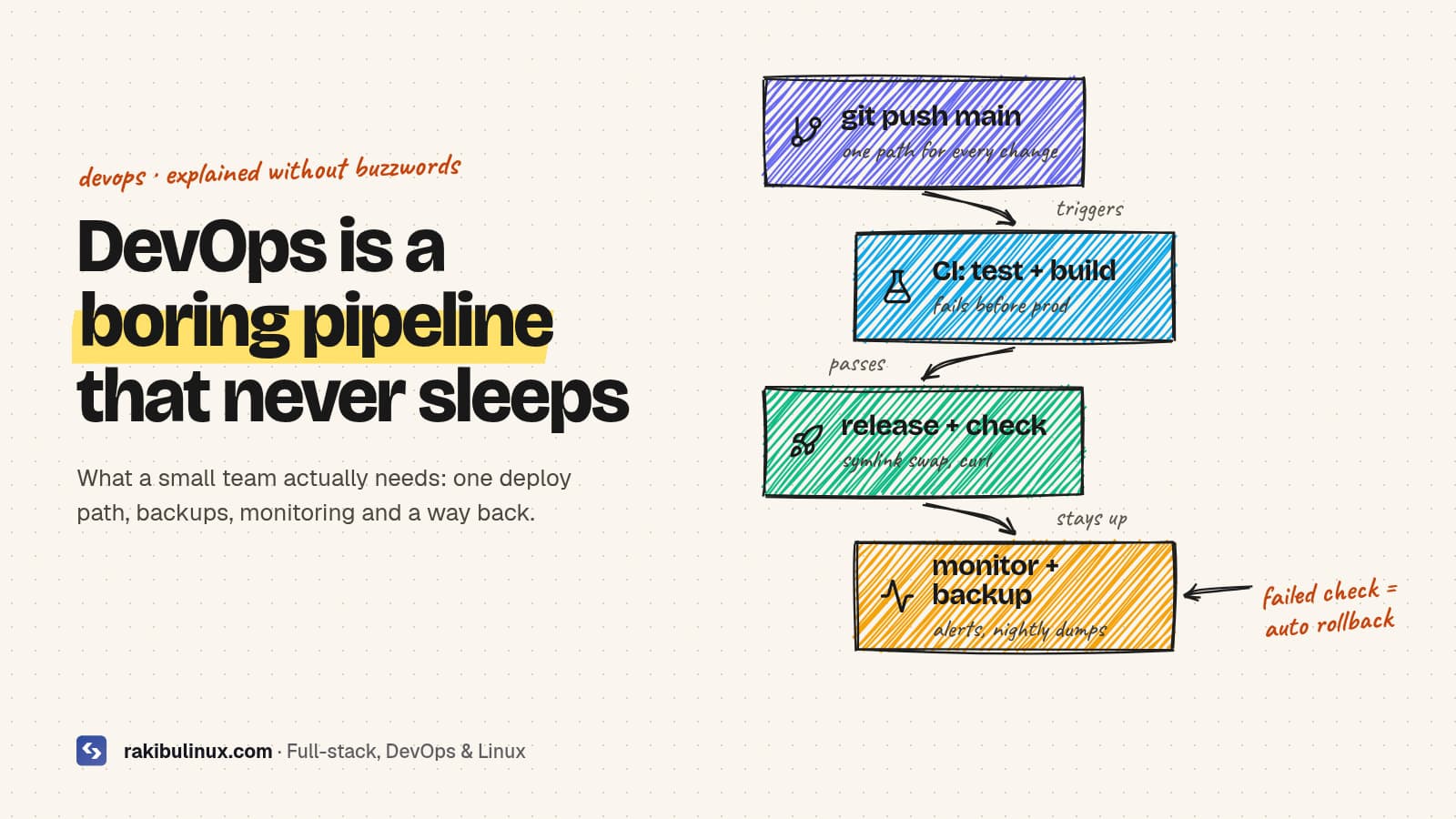
What Is DevOps? A Practical Guide for Small Teams
DevOps is how a team ships software often and safely: automated tests, one-click deploys, monitoring and fast rollback, owned by the people who build it. Most explanations of DevOps stop at "culture" and "collaboration". That's true, but it doesn't help a founder with one server and a deadline, or a small team where deploys mean SSH, git pull and hoping. I set up and run DevOps for small teams and for my own products. This site deploys itself on every push to main , with a database backup, a health check and an automatic rollback. This guide covers what DevOps means in practice, what to set up first, and when it's worth bringing in help. Key takeaways DevOps is a way of working, not a job title or a tool. The same team builds, ships and runs the software, and automates the boring parts. The core loop is short: commit, automated tests, automated deploy, health check, monitoring, learn, repeat. Start with four things: a CI pipeline, a scripted deploy with rollback, backups you've restored at least once, and uptime alerts. Measure it with the four DORA metrics: deployment frequency, lead time for changes, change failure rate and time to recover. Small teams don't need Kubernetes. One well-run VPS with a good pipeline beats a cluster nobody understands. What does DevOps mean in plain English? Before DevOps, developers wrote code and "threw it over the wall" to an operations team that deployed and ran it. When something broke, each side blamed the other, releases were rare and scary, and fixing a bug in production could take weeks. DevOps removes the wall. The people who write a feature are responsible for getting it to production and keeping it healthy there. To make that possible without burning out, they automate everything repeatable: testing, building, deploying, provisioning servers, backups and alerts. The result is small changes shipped often, each one easy to check and easy to undo. So when someone asks "what is DevOps?", the honest short answer is: automation plus ownership . Tools like GitHub Actions, Docker, Terraform or Ansible are how you do it, not what it is. What does a DevOps pipeline look like? Here's the real pipeline behind this website, which is a Next.js front end and a NestJS API on one Ubuntu server: Push to main . GitHub Actions starts a job. CI checks. Install dependencies with a frozen lockfile, type-check, run tests, build. A failure stops here and production is untouched. Deploy over SSH. The Actions key can only run one deploy command, nothing else. Build a new release folder while the old version keeps serving traffic. Back up the database, run migrations, swap a symlink, restart the process. Health check. If /health doesn't answer within about 90 seconds, the symlink is swapped back to the previous release automatically. Every change takes the same automated path. A broken test stops it before production; a failed health check after deploy puts the previous release back without anyone logging in. None of this needs a big platform. It's a GitHub Actions workflow and a Bash deploy script of about 150 lines. I wrote up the full setup in GitHub Actions CI/CD to a VPS with automatic rollback . The DevOps practices that matter most Continuous integration (CI) Every push is built and tested automatically on a clean machine. "Works on my laptop" stops being an argument, and broken code is caught minutes after it's written instead of days later. Continuous delivery and deployment (CD) Deploying is one command or one merge, and it's the same every time. When deploys are boring, you do them more often, so each one is smaller and safer. The opposite, a big monthly release, is where most outages come from. Infrastructure as code (IaC) Servers, DNS, firewalls and databases are described in files (Terraform, Ansible, Docker Compose, or even a well-commented shell script) and kept in git. You can rebuild a server from scratch, review infrastructure changes like code, and see who changed what. Monitoring, logging and alerts You should hear about a problem from an alert, not from a customer. At minimum: uptime checks from outside, disk and memory alerts, error logs you can search, and SSL expiry warnings. Backups and recovery Backups are part of DevOps, not an afterthought. My deploy script dumps the database before every migration, and nightly backups go off the server. The step most teams skip is testing a restore. My Linux server backup guide covers it. Security built in Hardened SSH, a firewall, automatic security updates, secrets outside the repo and dependency checks in CI. My Ubuntu 24.04 hardening checklist is the baseline I apply to every server. How do you measure DevOps? The DORA metrics Google's DORA research program has tracked thousands of teams for years and settled on four metrics that predict delivery performance: Deployment frequency: how often you ship to production. Lead time for changes: how long from commit to running in production. Change failure rate: what share of deploys cause a problem that needs a fix or rollback. Time to restore service: how fast you recover when a deploy goes wrong. You don't need a dashboard to start. Write the four numbers down today, and check them again after a month of changes. If deploys went from "every two weeks, takes an afternoon" to "several times a day, takes five minutes", it's working. What should a small team set up first? If you're starting from manual deploys, this is the order I'd follow. Each step pays for itself before the next one: Put everything in git , including server config and deploy scripts. No secrets in the repo. Add CI that installs, type-checks, tests and builds on every push. Script the deploy with release folders and a health check, so rollback is one command (then make it automatic). Set up backups that leave the server, and restore one to prove it works. Add monitoring: an external uptime check and alerts for disk, memory and certificate expiry. Harden the server and keep it patched. Only then consider containers, staging environments or infrastructure as code with Terraform. Skipping straight to Kubernetes is the most common mistake I see. It solves problems small teams don't have yet and adds a lot of moving parts. A single VPS also costs far less than most managed platforms, as I worked out in Vercel vs self-hosting costs . Is DevOps a role or a culture? Both, and the confusion is fair. The original idea is cultural: shared ownership between development and operations. In practice, companies also hire "DevOps engineers" to build the pipelines, infrastructure and monitoring that make that ownership possible. For a small company, that's often a freelancer who sets everything up, documents it, and hands it over so the developers can run it day to day. Signs you need DevOps help Deploys are manual, and only one person knows how to do them. You've had an outage and couldn't tell what changed. You don't know when your last working backup was taken. The server hasn't been updated in months, or you're not sure who has SSH access. Your hosting bill keeps growing and nobody knows why. Frequently asked questions What is DevOps in simple words? DevOps is a way of building software where the same team develops, deploys and runs it, and automates testing, deployment and monitoring. The goal is to release small changes often, with less risk. What tools are used in DevOps? Common ones are Git and GitHub Actions or GitLab CI for pipelines, Docker for packaging, Terraform or Ansible for infrastructure as code, Nginx, and Prometheus, Grafana or an uptime service for monitoring. The tools matter less than automating the same path every time. Does a small business need DevOps? Yes, at a small scale. A CI pipeline, a scripted deploy with rollback, tested backups and uptime alerts take a few days to set up and prevent the outages and lost data that hurt small businesses most. Is DevOps the same as CI/CD? No. CI/CD is one practice inside DevOps. DevOps also covers infrastructure as code, monitoring, incident response, security and the shared ownership that ties them together. How long does it take to set up a DevOps pipeline? For a typical web app on a VPS, a working CI pipeline with automated deploys and rollback takes a few days. Monitoring, backups and hardening add a few more. Larger systems with several services take longer. Want this set up for your project? I build CI/CD pipelines, deploy scripts with automatic rollback, backups and monitoring for small teams, and document everything so you can run it yourself. See my DevOps services or tell me about your setup .
Read article →
My New Work Station: Embracing the Heights of Productivity with a Standing Desk
Introduction: Welcome to the unveiling of my revamped workspace! In the pursuit of a healthier and more productive work environment, I recently made a significant upgrade – I embraced the world of standing desks. Join me as I share my journey into the realm of ergonomic bliss and discover how this change has positively impacted my daily work routine. The Decision to Stand: For many of us, the sedentary nature of desk jobs can take a toll on both physical and mental well-being. The idea of a standing desk began to intrigue me as I sought a solution to combat the notorious slouch and fatigue that often accompany long hours at a traditional desk. The decision to stand while working not only promised increased energy levels but also hinted at a healthier posture and improved focus. Setting Up the Standing Desk: The excitement of receiving and assembling my new standing desk was palpable. As each piece came together, I envisioned a workspace that would not only elevate my computer but also lift my productivity to new heights. The adjustable features of the desk allowed me to find the perfect height, ensuring a comfortable and customized experience. The Impact on Productivity: The transition to a standing desk brought about a noticeable shift in my daily work routine. While the physical benefits were evident – reduced back pain, increased circulation, and improved posture – the impact on productivity was equally profound. Standing while working encouraged better concentration, minimized distractions, and infused a renewed sense of alertness into my tasks. Ergonomics and Comfort: One of my initial concerns was whether standing for extended periods would lead to discomfort. However, with the right ergonomic setup, including an anti-fatigue mat and proper footwear, my fears were quickly dispelled. The standing desk's adaptability allowed me to seamlessly switch between sitting and standing, striking the perfect balance between comfort and health. Tips and Tricks for Standing Desk Success: In my exploration of the standing desk lifestyle, I've gathered some invaluable tips and tricks. From incorporating short breaks to stretch and move around to investing in a supportive anti-fatigue mat, these insights have contributed to making the standing desk experience not just beneficial but enjoyable. The Standing Desk Chronicles: Follow me on this blog series, 'The Standing Desk Chronicles,' where I'll share updates on my journey, delve into the latest ergonomic trends, and explore the broader landscape of creating a workspace that nurtures both productivity and well-being. Conclusion: My new workstation – the standing desk – has truly been a game-changer. It's not just about standing; it's about elevating my work experience, quite literally. Join me in this ongoing adventure as we explore the heights of productivity, one standing desk at a time. Welcome to 'My New Work Station: The Standing Desk Chronicles.' Stand tall, work smart!
Read article →